
On this page
Choose the translation, review it and then choose the output
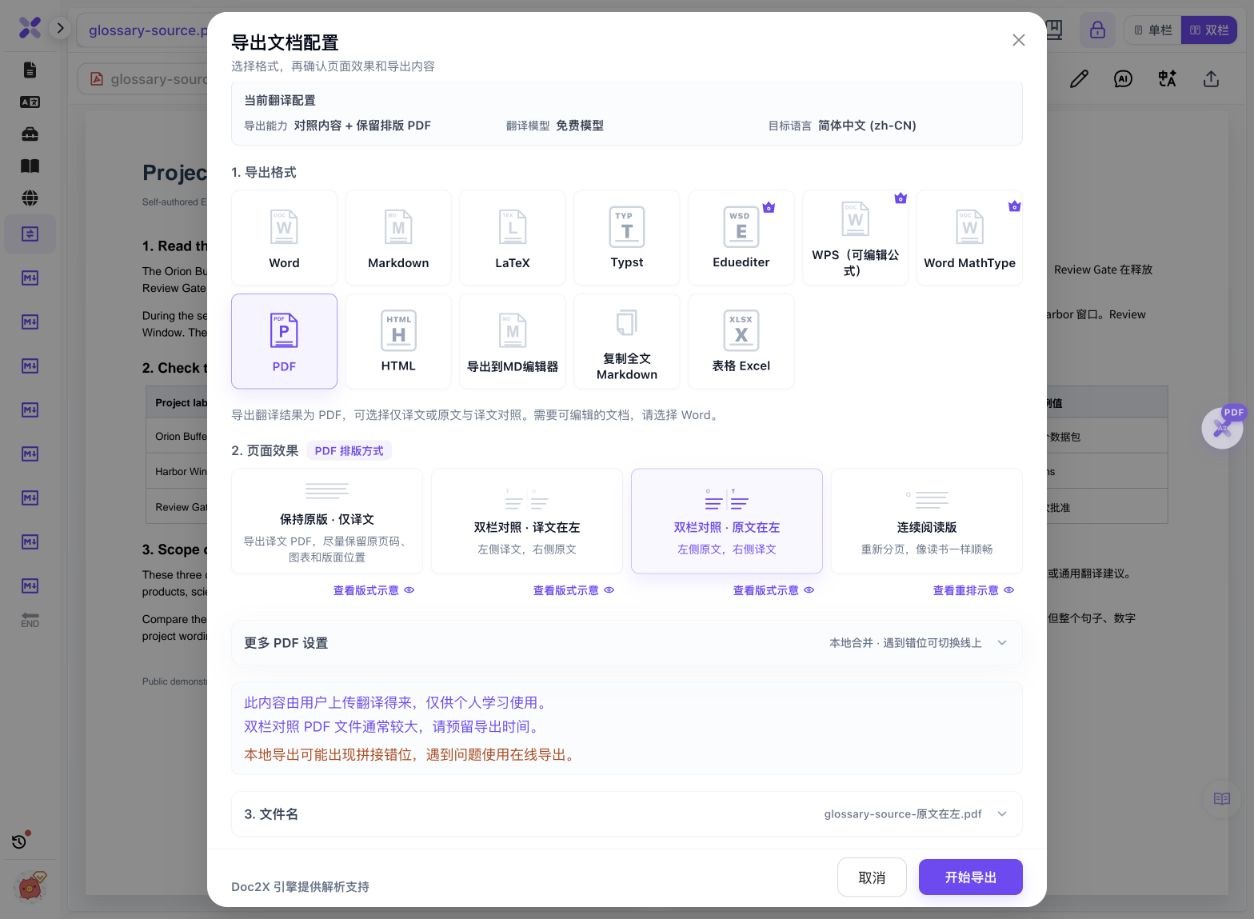
- Open document translation and choose the target language and mode. This test used Bilingual + layout (双语对照+排版), Simplified Chinese, the model labelled Free model (免费模型), no glossary, context enhancement on and single-page priority.
- Choose Start parsing and translating file (开始解析并翻译文件), select the PDF, check the page range and confirm Start translation (开始翻译). This sample contains one page; no scan enhancement was used.
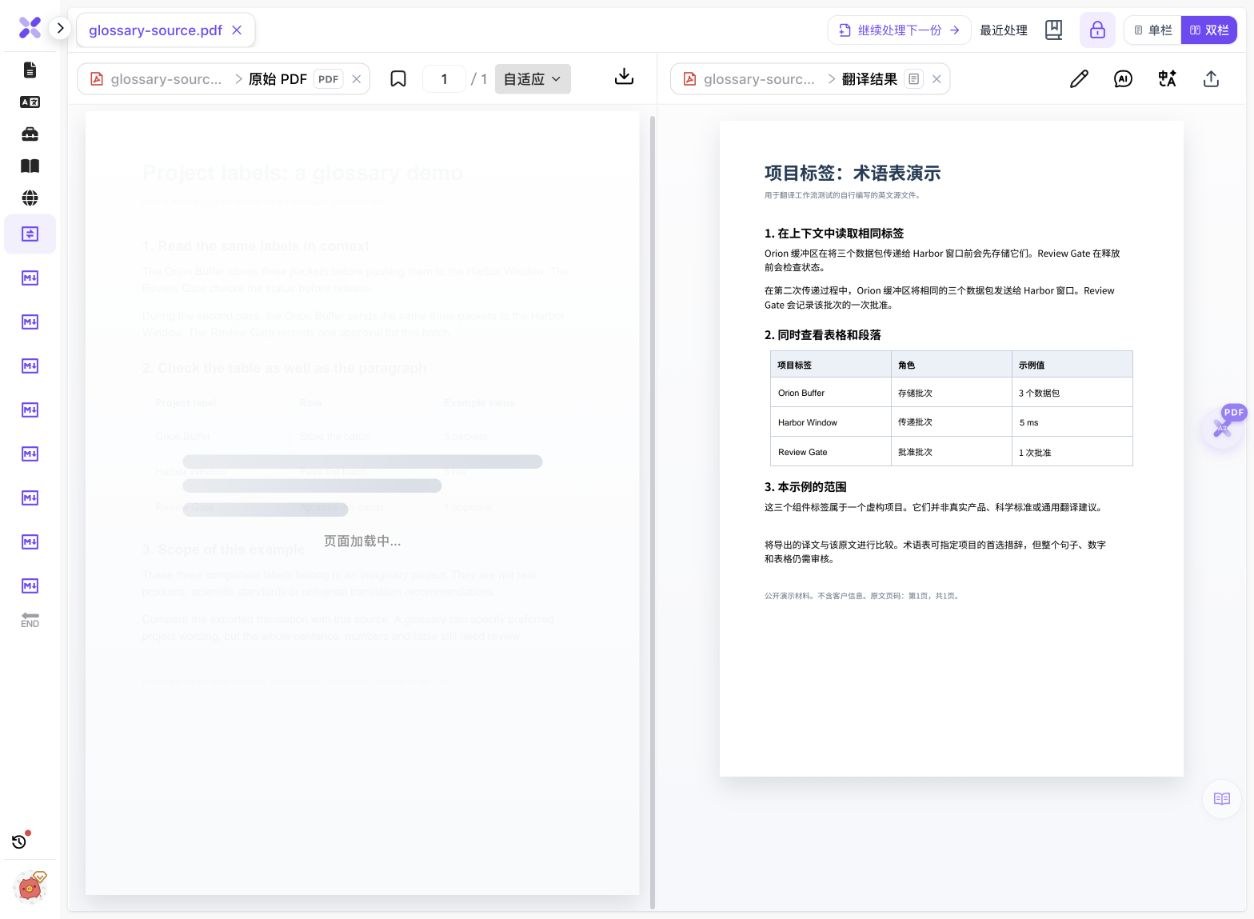
- Wait for the task and its required outputs to finish. Compare the source and translation in the reader, including headings, numbers, table rows and terminology. The current result’s capability summary shows what can be exported.
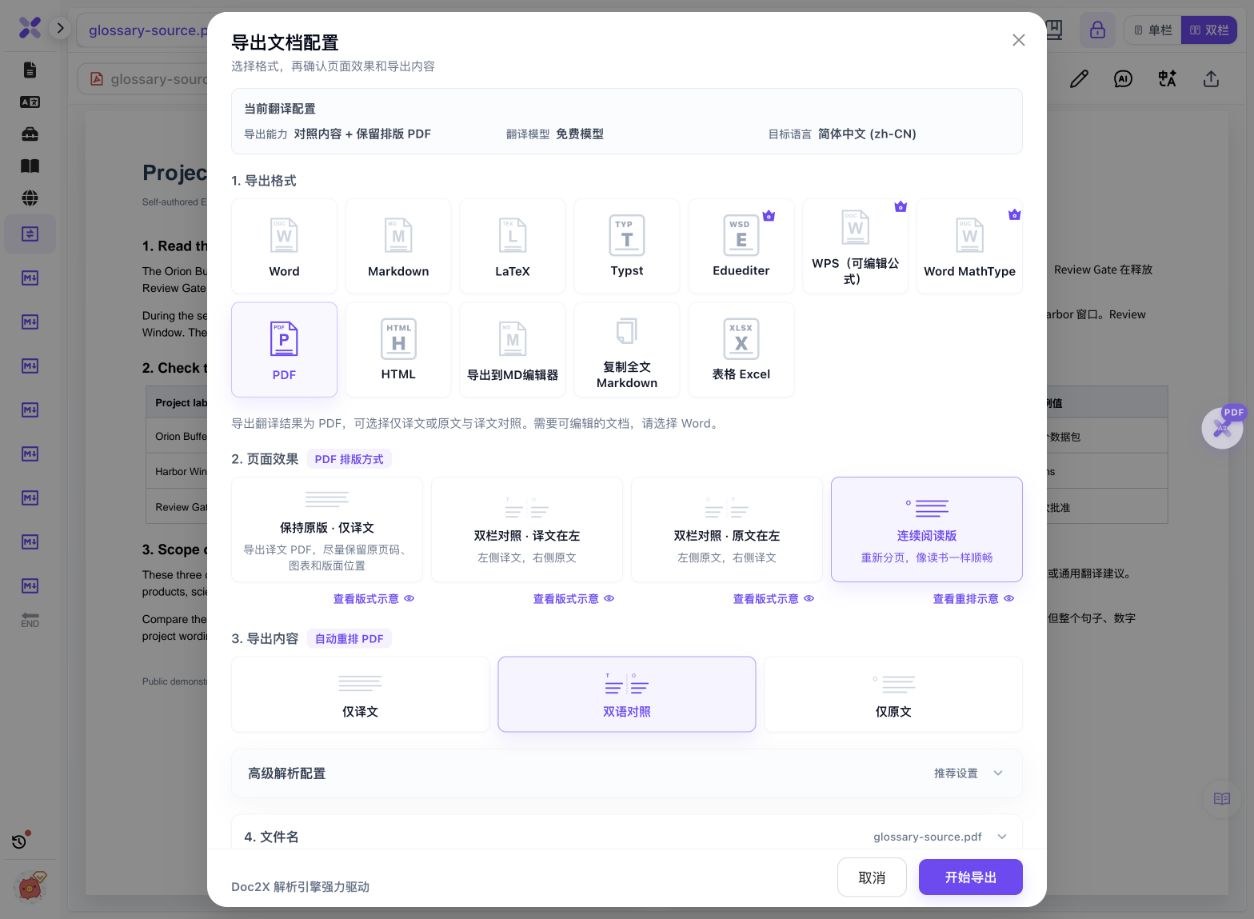
- Click Export (导出), select PDF, then choose the page effect. Keep original layout · translated only (保持原版 · 仅译文) gives the translated page. Original on left (双栏对照 · 原文在左) or Translation on left (双栏对照 · 译文在左) puts complete pages next to each other.
- For alternating paragraphs, select Continuous reading (连续阅读版), then Bilingual (双语对照) under content. This requires bilingual content; it can change page breaks, font sizes and table appearance.
- Download and inspect the complete file. Check the output’s page count and size, which side contains each language, and whether the chosen arrangement is readable for your intended use. Keep the original PDF and review the translation before relying on it.
This test uploaded one page and created one new translation. Current sign-in, page quota, model costs and mode access apply; the model label is not a promise of unlimited free processing.
One new translation, four unchanged PDF downloads
On 14 October 2026, we uploaded the public one-page English sample and translated it into Simplified Chinese. All four files below come from that new task. The source is titled “Project labels: a glossary demo”, but no glossary was selected in this run. These are not the older October 11 translation files.
 Enlarge image ↗
 Enlarge image ↗
 Enlarge image ↗
 Enlarge image ↗
 Enlarge image ↗
 Enlarge image ↗
| Original value | Observed Chinese value | Review |
|---|---|---|
| 3 packets | 3 个数据包 | Quantity and the meaning of packets |
| 5 ms | 5 ms | Value and time unit |
| 1 approval | 1 次批准 | Quantity and approval wording |
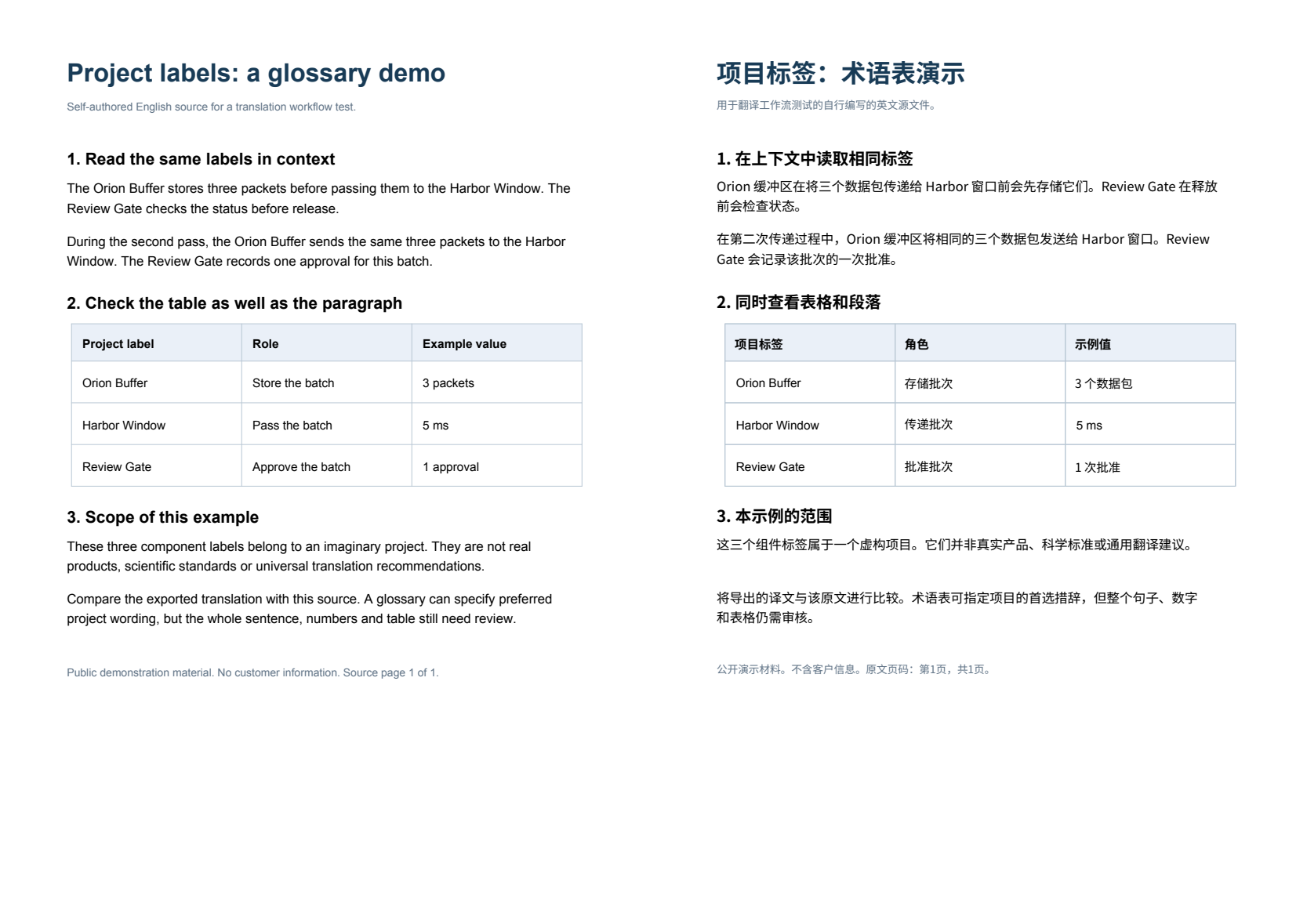
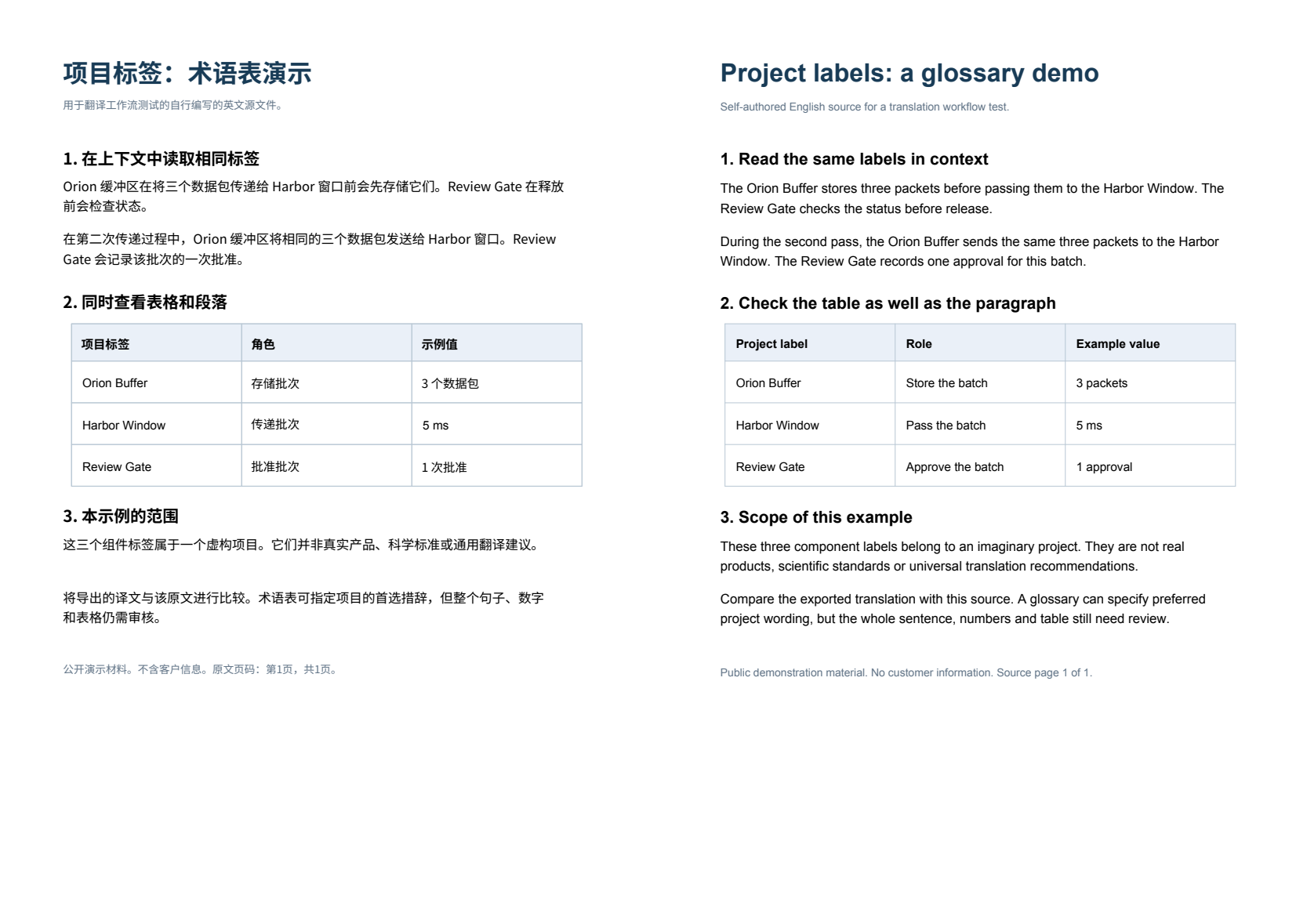
- The original and translated-only PDF each have one A4 page, about 595.28 × 841.89 points. The two side-by-side PDFs each have one page about 1190.55 × 841.89 points: twice the width, with the same height.
- Text from the original half matches between the two opposite-order PDFs and the source. Text from the translated half matches between them and the translated-only PDF. Changing sides did not create a different translation.
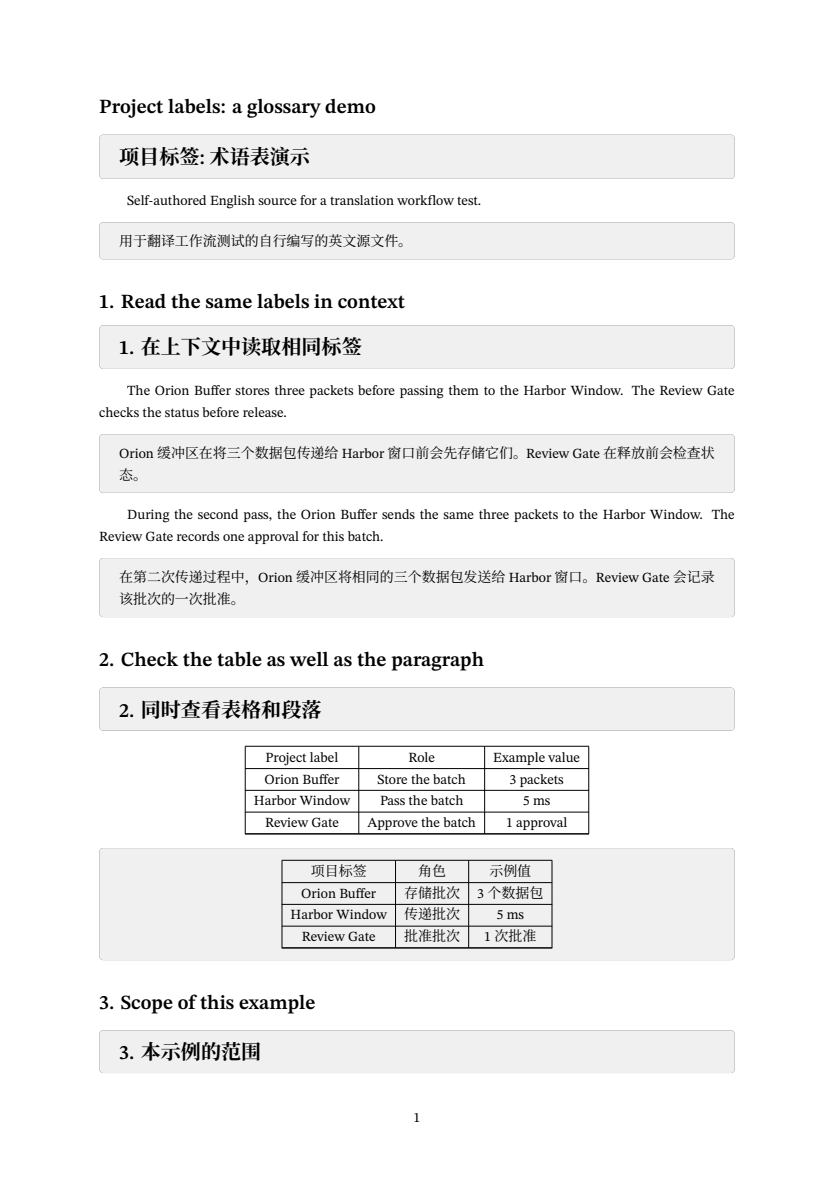
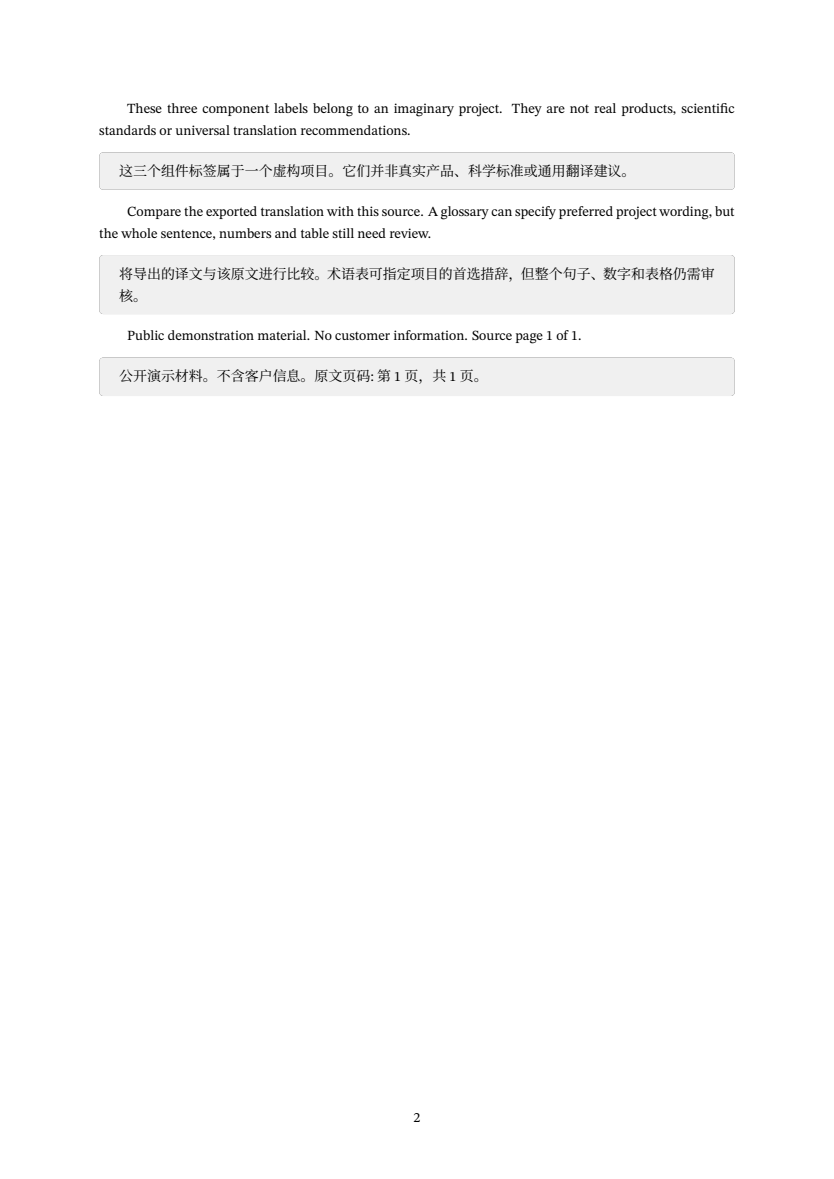
- The continuous-reading PDF has two A4 pages. Section 3 headings are at the end of page 1; the body starts on page 2. The table typography and overall layout differ from the original.
- The source footer still says page 1 of 1 on the second flow page, while the new output page number is 2. Source-page text and output pagination are different references.
- Orion Buffer, Harbor Window and Review Gate remain English in the translated table, while the first two are partly translated in prose. Those fictional names need a consistent project decision; the files have not been silently corrected.
The PDFs retain their actual download bytes. The page images are local PDFium renderings of those files. This is one digital page without formulas, illustrations, scans or original bookmarks; it is not a translation-accuracy benchmark or a printing test. Multipage synchronized scrolling was not tested here. The comparison ZIP was assembled locally from the source, downloads and notes.
What to check
Select the target language and translation mode before uploading the PDF. Review the finished translation beside the source, then choose the download layout separately: translated-only PDF, whole pages side by side, or bilingual paragraphs in a continuous-reading PDF. The reader’s split view does not automatically make the download bilingual. In the actual one-page example, side-by-side output stays one wider page, while paragraph bilingual output becomes two pages.
- Input
- One self-authored English A4 page with three fictional project labels and a table.
- Translation
- Simplified Chinese; the interface labels the model “免费模型” (Free model).
- Four downloads
- Translated-only, original on left, translation on left, and paragraph bilingual PDF.
- Review needed
- Names remain English in the table and partly translated in prose; layout choice does not resolve consistency.
Which translated PDF should you download?
| Need | PDF choice | Observed result in this sample |
|---|---|---|
| Read only the target language | Keep original layout · translated only | One A4 translated page |
| Compare complete pages with source first | Side by side · original on left | One wide page, English then Chinese |
| Read the translation first and check the source | Side by side · translation on left | One wide page, Chinese then English |
| Alternate original and translated paragraphs | Continuous reading + bilingual content | Two A4 pages with new pagination |
Reader layout and downloaded layout are separate
The reader’s single/split-pane and follow-scroll controls affect viewing. The PDF export dialog controls the saved document. If the reader looks bilingual but the download contains only Chinese, inspect the export’s page effect and content choice. You do not need to retranslate just to switch between available output arrangements.
Side-by-side PDF keeps complete pages together
The two fixed pages are placed in one wider output page in this sample. The opposite-order downloads contain the same corresponding text. Wider pages may require zooming on a small screen; inspect the actual size before printing or sharing. This guide does not claim physical printer results.
Paragraph bilingual output changes pagination
Continuous reading places source paragraphs next to their translations in sequence. The one-page input becomes two PDF pages here, including a heading at a page boundary. It remains a fixed-page PDF, not content that automatically reflows to every phone width. Check both pages and distinguish source footers from new page numbers.
Choose terminology before treating the translation as finished
No glossary was selected despite the sample’s glossary-demo title. Names remain English in the table and partly translated in paragraphs. When a project requires fixed names, prepare and select a reviewed glossary for the translation task, then check the actual output; a saved glossary does not retroactively rewrite these files.
Review numbers, units and meaning as well as appearance
The three quantities are visible in both languages, but that small check is not a measure of full translation quality. Read sentences in context, check negation and terminology, and compare table labels. Attractive page alignment or a successful download cannot establish that every statement is correct.
Use the current task’s export capabilities
The tested result reports bilingual content plus fixed-layout PDF. Other modes or historical results may have only some of those outputs. Wait for the required output to finish and follow the current capability summary. Do not assume every record exposes the same Word, PDF or bilingual choices.
Start with a representative page for more complex files
This sample has text and a small table. Scanned pages, figures, formulas, footnotes and long documents need their own review. For format conversion without changing language, use parsing and export instead of creating a translation.
Detailed tool instructions
English Help separates translated-only, bilingual and original content from fixed-page and continuous-reading PDF layouts.
Troubleshooting
- The reader shows both languages but the PDF does not
- Choose the PDF page effect explicitly. A split reader view is not the export content setting.
- The bilingual PDF is wider than the original
- Complete source and translation pages may be joined horizontally. Check the actual page size and choose paragraph bilingual output if that better fits your reading task.
- The PDF has more pages than the source
- Continuous-reading output repaginates the combined text. Check source-page labels and output page numbers separately.
- A bilingual option is unavailable
- Check whether the current task has bilingual content and whether the required output is ready. Changing format cannot create a missing translation result by itself.
- The same project name appears in different forms
- Review the original and decide on consistent terminology. Changing left/right layout will not alter that wording.
Frequently asked questions
How can I translate a PDF and keep the original beside it?
Choose a translation mode that supplies the required outputs, review the result, then export PDF with original-on-left or translation-on-left side-by-side layout. Both actual downloads are provided here.
How do I make a paragraph-by-paragraph bilingual PDF?
For a task with bilingual content, choose PDF → Continuous reading → Bilingual. The tested one-page source becomes two A4 pages with alternating original and translated paragraphs.
Does choosing a different export layout translate the file again?
The four PDFs here were exported from one new translation task. Switching available PDF arrangements reused that result; no second translation was created for the comparison.
Does this example translate a PDF into English?
No. This example translates English into Simplified Chinese. Choose an available target language in your own task and review its output; the files here do not demonstrate the reverse direction.
Is the workflow unlimited or always free?
The tested interface labels the chosen model Free model, while mode access and page quota still depend on the account. Check the current conditions before starting; this page makes no unlimited-processing promise.
Does the wider PDF prove the translation is accurate?
No. It makes comparison convenient. The sample still needs a consistent decision for its fictional project names, and other documents require separate content checks.
Checked: 2026-10-14. Check the current tool for limits and conditions.