
PDF to Word: layout or table editing
Compare a preserved-layout DOCX with a reflowed DOCX from the same English PDF.
Check: Positioned textboxes and native tables support different kinds of editing.
DOC2XFIELD GUIDE / DOCUMENTS
Editable text. A reusable table. A formula you can check. Choose the next task, compare a real example, then open the matching tool.
Guides are in English. Each guide identifies the language of the current tool and explains the controls you need.
START WITH THE RESULT
The format name is only the start. Pick the guide that matches your source and the work you want to do next.
Choose whether you need editable content or the original page appearance.
Compare a preserved-layout DOCX with a reflowed DOCX from the same English PDF.
Check: Positioned textboxes and native tables support different kinds of editing.
Follow an image-only PDF through recognition and inspect the actual Word output.
Check: Review blank cells, numbers and changed pagination against the source.
Add a text layer while keeping the scanned page images for reading and archiving.
Check: Search, selection and copy order are separate from Word editing.
Take the structure you need into a spreadsheet, notes or another document.
Compare actual merges with reversed order and footnote deduplication on or off.
Check: Repeated headings, footnote meanings and final renderer behavior.
Inspect two native worksheets and separately prepared reviewed XLSX and CSV examples.
Check: Leading zeros, blanks, negatives and page boundaries before joining rows.
Download the actual MD/image package and compare local display controls.
Check: Keep relative image paths and choose a renderer that supports the exported syntax.
Start from what you have: a screenshot, a full PDF or an existing equation object.
Compare a formula screenshot with actual whole-result and selected-node copies.
Check: Grouping, punctuation and the copied fragment’s math delimiters.
Inspect a real TeX/image ZIP and local compilation results before using your own project.
Check: Include image files and a suitable compiler; local checks are not an Overleaf cloud run.
Distinguish supported equation conversion from recognizing a PDF appearance.
Check: An OLE object, an image and source text need different handling.
Organize pages, reduce file size or compare languages, then check the file you download.
Compare actual Standard, High Compression, page-range and image-only outputs.
Check: Exact bytes, retained pages, fine print and the presence of a text layer.
Use the English merge tool and compare sequential and interleaved sample outputs.
Check: Verify page order, bookmark destinations and mixed page sizes.
Compare four actual PDFs from one English-to-Chinese translation task.
Check: Reader layout and the downloaded bilingual layout are separate choices.
ONE SOURCE / DIFFERENT OUTPUTS
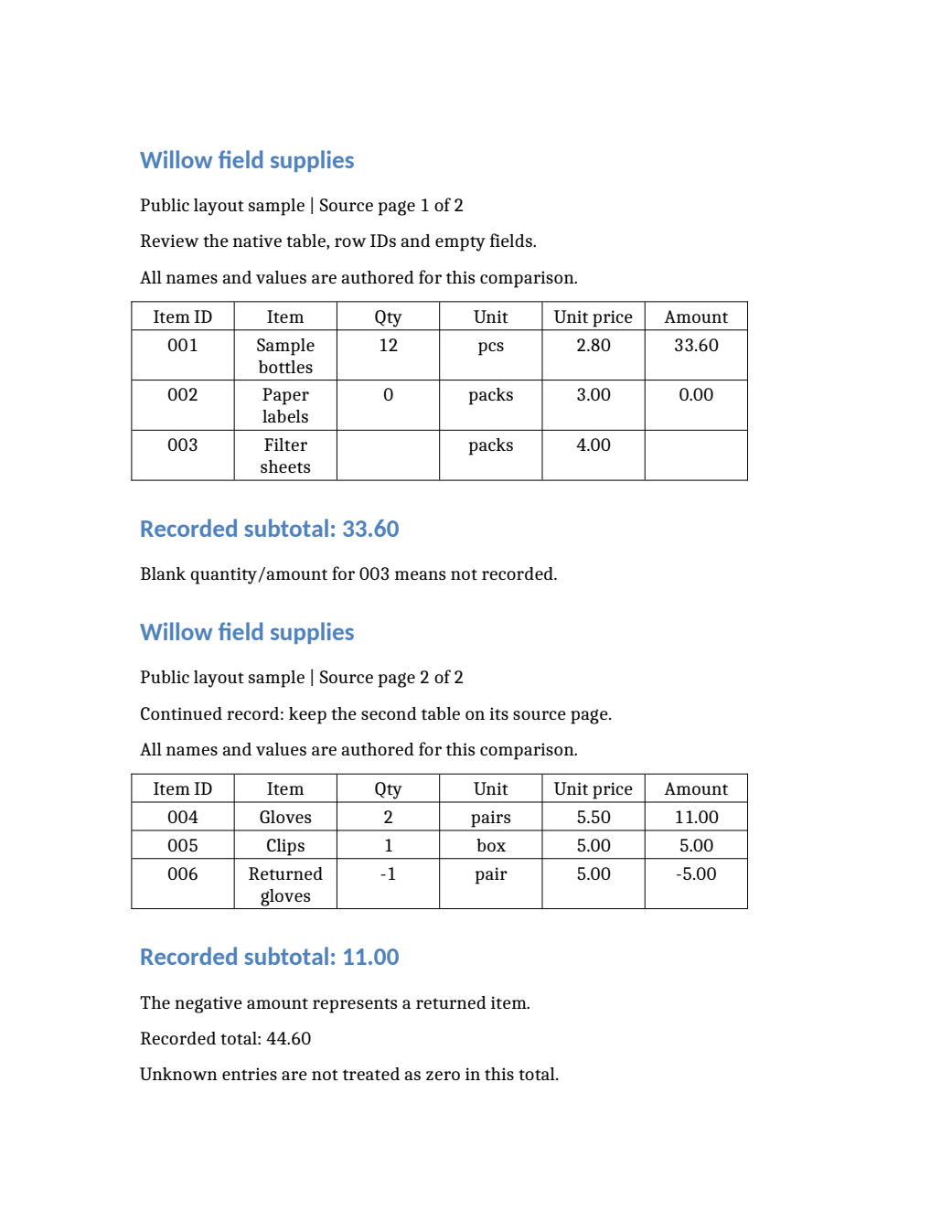
These previews come from the actual Word files used in the English guide. Preserved layout uses positioned textboxes; reflow provides native tables and changes pagination. Choose after comparing both.
Compare the original PDF and both DOCX files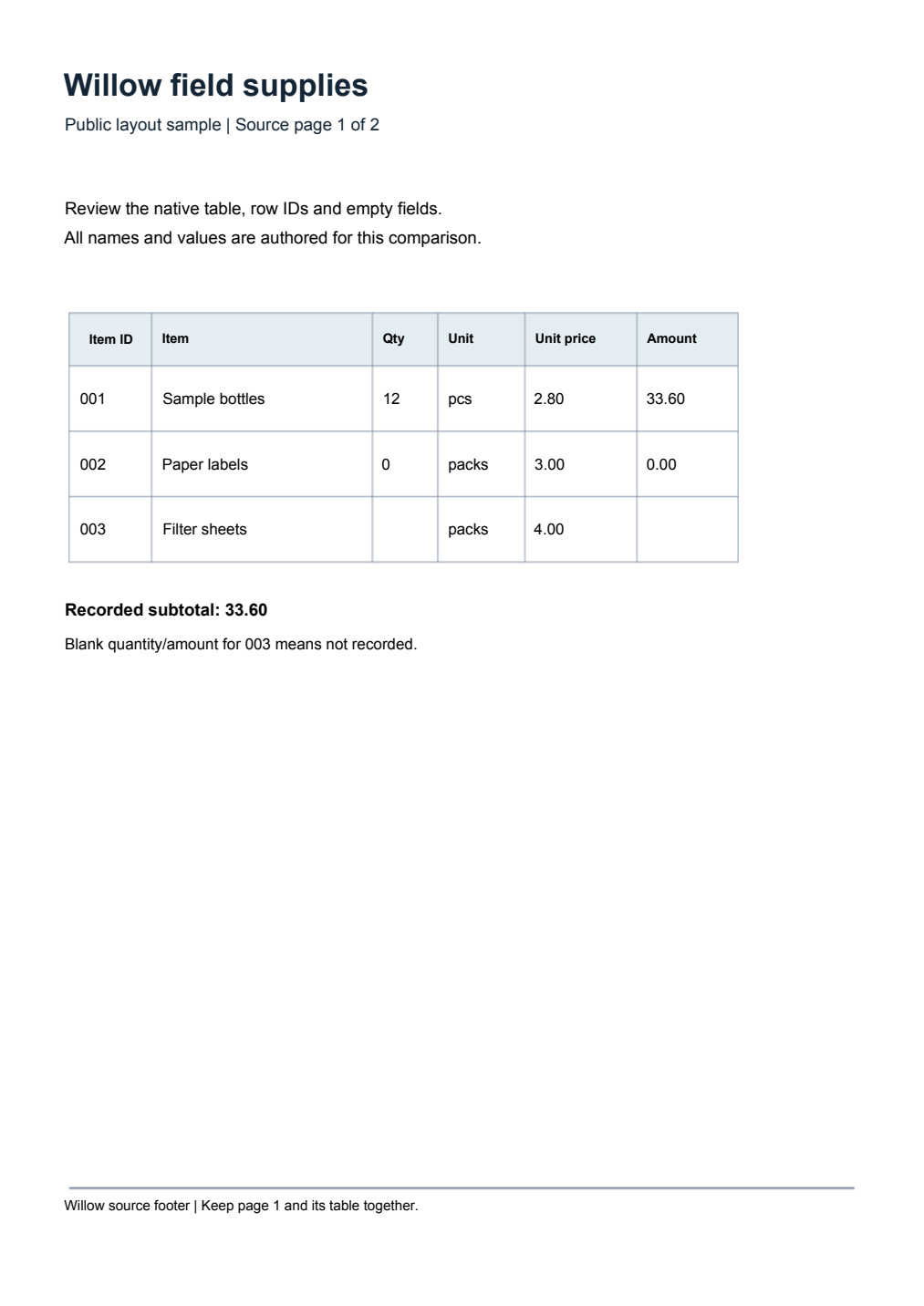
BEFORE YOU UPLOAD
Examples show the tested files and their limits. Current sign-in, quota, pricing and available options are shown in the tool.
Checked: 2026-10-14. Follow the linked guide for its sample and review scope.