
On this page
Compare size and content before choosing the stronger preset
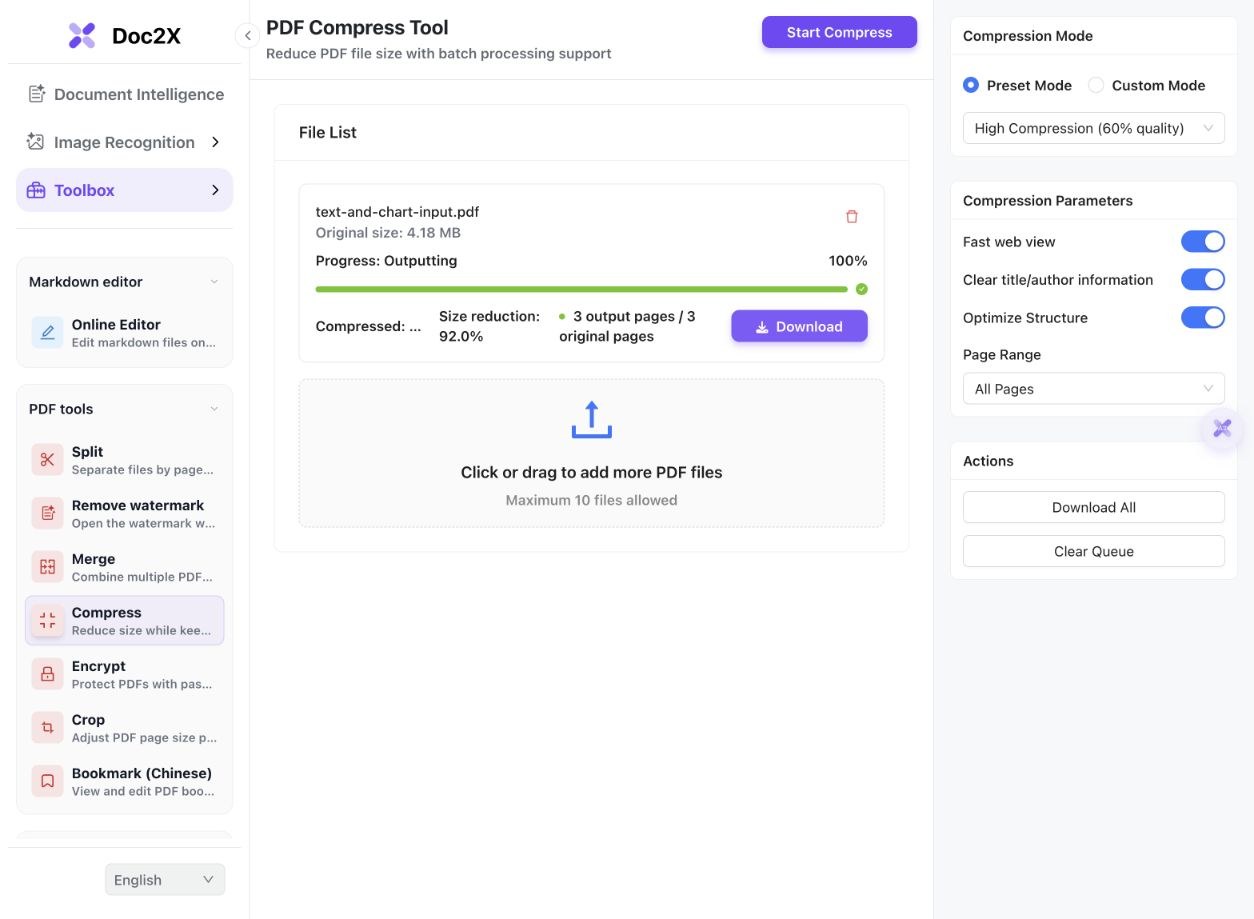
- Open the English PDF compression tool and click Select Files. Keep the original PDF and confirm its size and actual page count.
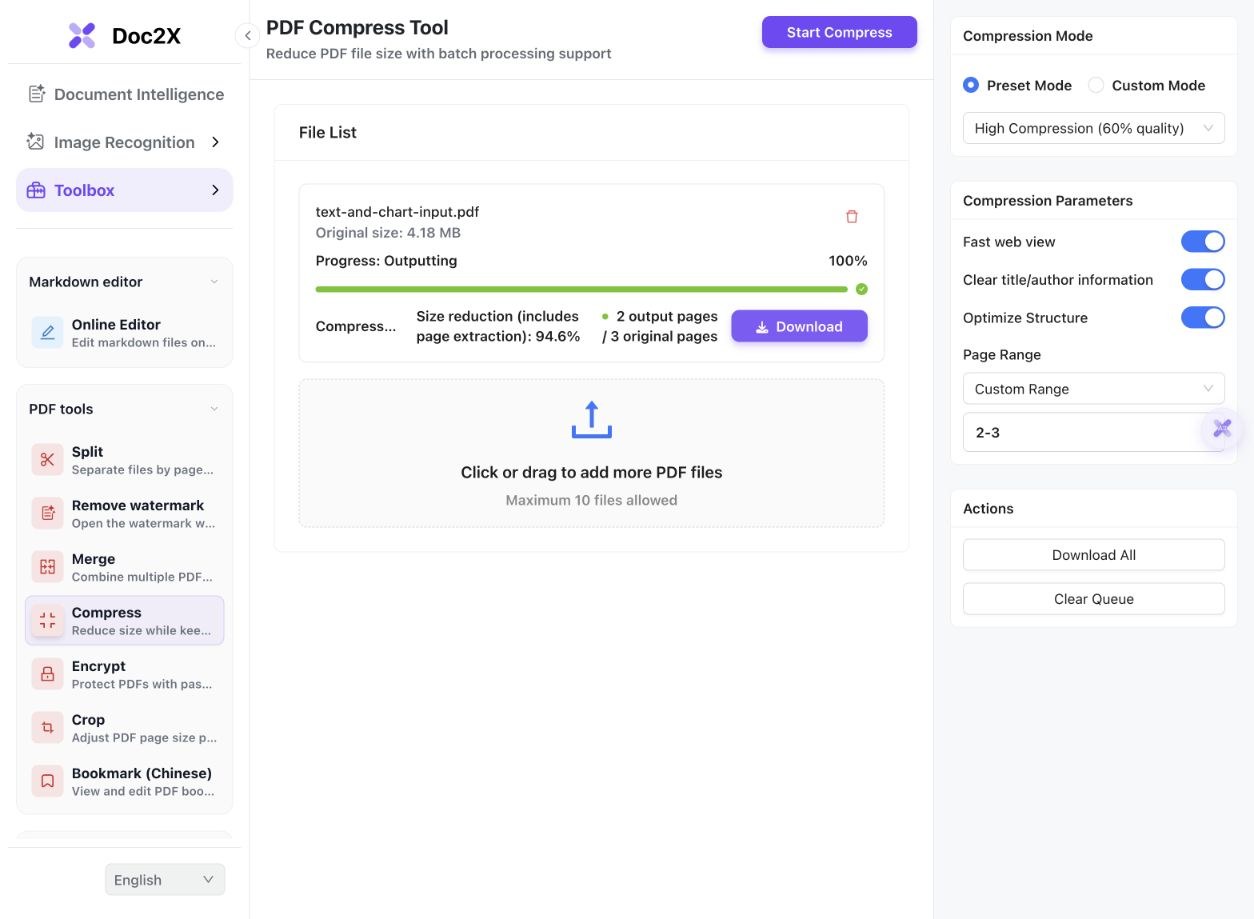
- Start with Standard under Preset Mode. The recorded runs kept Fast web view, Clear title/author information and Optimize Structure enabled.
- Leave Page Range as All Pages unless you deliberately want a subset. For a subset, choose Custom Range and enter actual file positions, such as 2-3.
- Click Start Compress and wait for the per-file result. Read the original/output sizes and output-page count, then use Download to save the actual file.
- Compare important details at the same zoom. If a smaller file is needed, run High Compression from the original and inspect small raster text, chart lines and page completeness again.
- Check whether text remains selectable or extractable, and compare exact bytes with the receiving platform’s limit. Keep the original for OCR or later editing when the compressed copy loses useful detail.
The current tool accepts up to 10 files. This example uses four actual runs from the original inputs. Preset quality numbers are encoding settings, not percentages of visual fidelity.
Two source PDFs, four unchanged compression results
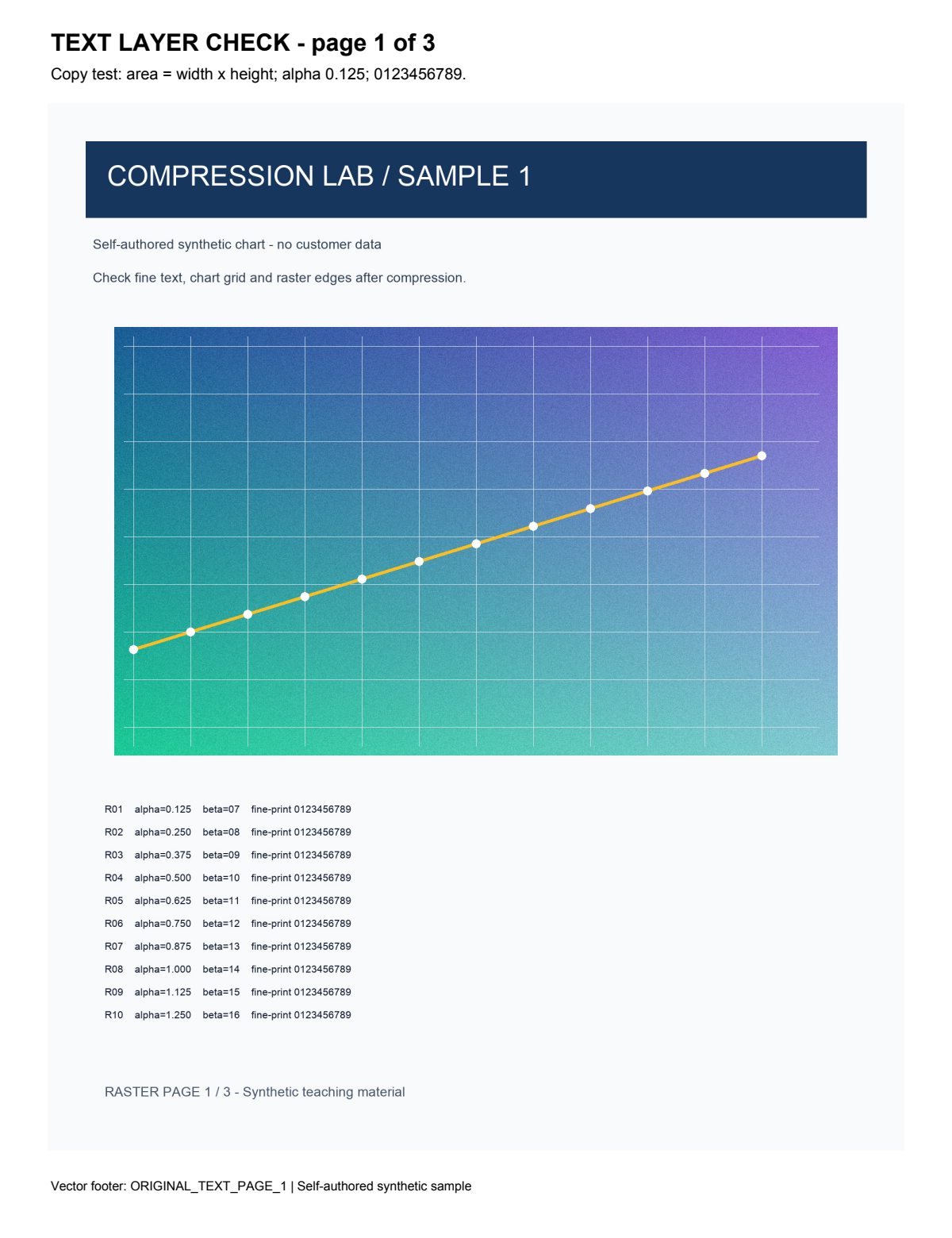
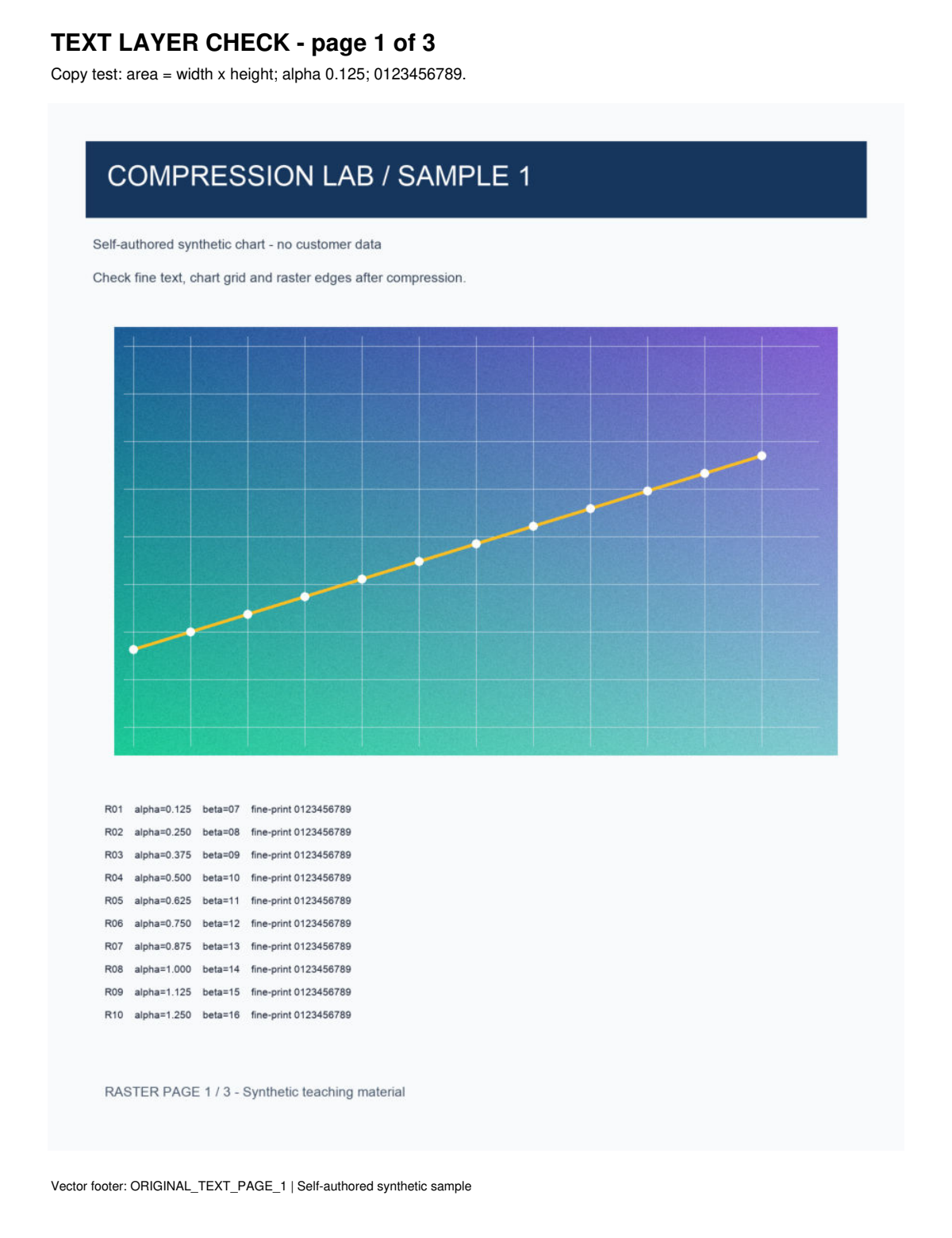
On 14 October 2026, the English tool processed two existing self-authored English chart fixtures. One contains native text plus images; the other contains only images. Standard, High Compression and a page-range output came from the text/chart original, and a fourth run compressed the image-only source.
 Enlarge image ↗
 Enlarge image ↗
 Enlarge image ↗
 Enlarge image ↗
 Enlarge image ↗
 Enlarge image ↗
| File / setting | Bytes | Pages |
|---|---|---|
| Text/chart original | 4,379,754 | 3 |
| Standard, all pages | 2,149,168 | 3 |
| High Compression, all pages | 352,357 | 3 |
| High Compression, range 2–3 | 238,026 | 2 |
| Image-only original | 4,378,912 | 3 |
| Image-only, High Compression | 344,567 | 3 |
- Standard reduced the complete text/chart file by 50.93%; High Compression reduced it by 91.95%. Both still contain three pages. These percentages are observations for one authored fixture, not predicted savings for another PDF.
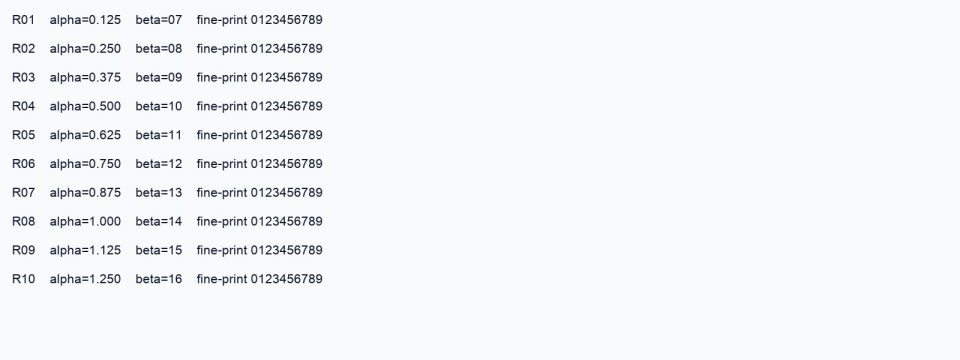
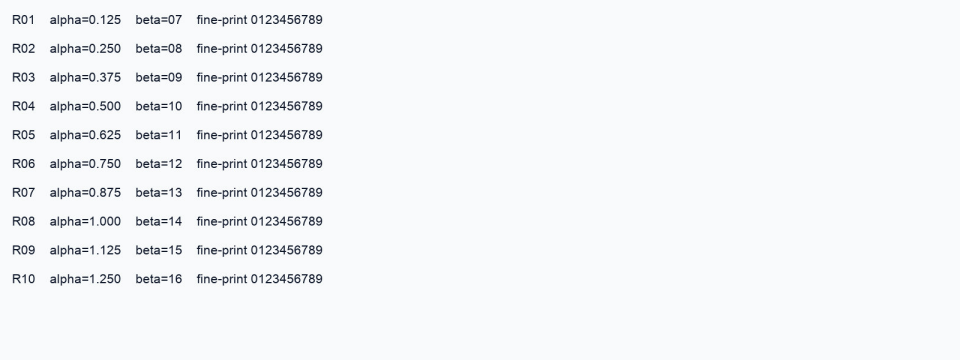
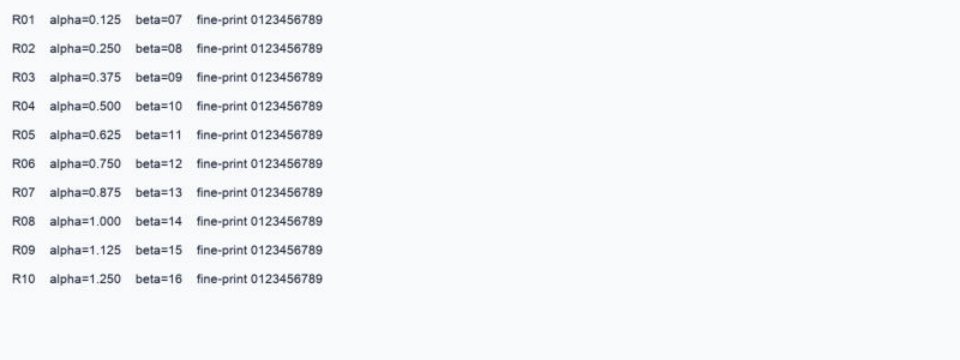
- The Standard output retains 1800×2200 images on each page; High Compression uses 900×1100 images. The matching fine-print crops show the resulting softness, rather than treating the preset’s 60% label as retained quality.
- Native text from the full-document outputs matches the original after whitespace normalization. This is a file-text extraction check, not a browser clipboard or OCR-accuracy test.
- The range output contains exactly original pages 2 and 3 in order, verified by their original text/footer identifiers. Its 94.57% size reduction includes removing page 1 and cannot be compared as pure full-document compression.
- The image-only source and compressed image-only result both have zero extractable text. The pictures can still display letters, but compression has not created an OCR text layer.
- Original title and author metadata are absent from these outputs; generated producer and date metadata remain. The tested option is not complete metadata sanitization.
All six PDFs retain their original or actual download bytes. Page views and detail crops were locally rendered with PDFium at matching scale; they were not redrawn. The texture and charts are synthetic teaching fixtures, not physical scan evidence. Forms, signatures, original bookmarks, print output and all possible compression fallbacks are not tested here. The ZIP is a locally assembled comparison package.
What to check
Select the PDF, try the Standard preset and download the result. Compare exact file size, page count, important text and image detail before choosing stronger compression. If you select a page range, the smaller output also reflects removed pages. Compression can reduce image data; it does not automatically add searchable text to a scan or guarantee a specific file-size limit.
- Same original
- Standard and High Compression each processed the complete three-page text/chart PDF.
- Measured sizes
- 4,379,754 bytes became 2,149,168 or 352,357 bytes for this fixture.
- Page selection
- High Compression for pages 2–3 produced 238,026 bytes and two pages.
- Text-layer limit
- The image-only PDF remained without extractable text after compression.
Choose the next step from the actual result
| Observation | Interpretation | Next step |
|---|---|---|
| File is still over the receiving limit | Compression depends on existing content and encoding | Compare a stronger preset, or use a deliberate page subset |
| Small raster text becomes soft | Image data was reduced | Keep a higher-quality copy or return to the original |
| Output has fewer pages | A range may have been selected | Verify exact source positions and intended completeness |
| Scan still has no selectable text | Compression is not OCR | Use searchable-PDF processing when that is the goal |
| File barely shrinks | There may be little removable data | Avoid repeated destructive recompression just to chase a percentage |
File-size limits need an actual byte check
The full high-compression result in this example is below one million bytes, but that does not establish a target-size guarantee. The UI offers presets and custom image parameters; no exact 1 MB or 500 KB target was entered. Compare the downloaded bytes with the receiver’s definition of its limit. Rounded KB/MB labels can differ from exact byte counts.
Quality and resolution affect different things
The Standard and High presets use different image settings. In this fixture, Standard retains the original raster dimensions while High halves both dimensions. Encoding changes can reduce bytes without changing dimensions, and resolution reduction removes image detail. Inspect the content you need, rather than judging only the percentage shown beside a preset.
Page extraction changes the comparison
Selecting 2-3 intentionally omits page 1. The tool labels its size reduction as including page extraction and reports two output pages out of three. That output is useful if you need only those pages, but it is not a smaller copy of the complete original.
Text PDFs and image-only PDFs need different checks
The text/chart fixture keeps its original text after compression, while the image-only fixture has no text layer before or after. If you need searching, copying or editable Word, use the appropriate recognition/export workflow and verify it separately. A visible word in an image does not prove a text layer exists.
Keep the original when detail matters
Use original pages for OCR and archive a clear master when small digits, formulas, charts or signatures matter. This guide’s high-compression detail crop is visibly softer. A file can satisfy a submission limit while becoming less useful for reading or later recognition.
Check the result of each file in a batch
The current tool accepts several files, but the demonstrated runs each process one source at a time. Document content differs, so inspect each output size, page count and important detail. This example does not establish one compression ratio for an entire batch.
Detailed tool instructions
English Help explains presets, page ranges and checking the actual compressed file separately from OCR.
Troubleshooting
- The PDF is smaller but still exceeds a limit
- Measure the downloaded bytes and compare a different preset. If only selected pages are required, extract them deliberately and label the subset.
- Numbers blur after compression
- Return to the original and use gentler settings; sharpening a compressed preview does not recover the source data.
- Expected pages are missing
- Check Page Range and the actual file positions, including covers or blank pages.
- Text in a scan cannot be copied
- Use an OCR/text-layer workflow. The image-only control in this guide remains without extractable text.
Frequently asked questions
How do I reduce PDF file size without guessing the result?
Run a preset on a copy, download it and compare exact bytes, page count and important details. This guide provides full-document Standard and High outputs from the same original.
Can this guarantee a PDF below 1 MB or 500 KB?
No exact target-size guarantee is demonstrated. One fixture reaches 352,357 bytes, but other documents may not. Use the receiver’s actual byte limit and verify the download.
Does High Compression preserve 60% of visual quality?
The preset label is an encoding setting, not a quality score. In the tested file, raster images shrink from 1800×2200 to 900×1100 and fine print becomes softer.
Does compressing a scanned PDF make it searchable?
Not in this test. Both the image-only input and output have zero extractable text. Adding a searchable text layer is a different operation.
Why is the range result even smaller?
It includes only original pages 2 and 3, so the reduction combines compression with page removal. It should not be used as a full-document compression comparison.
Checked: 2026-10-14. Check the current tool for limits and conditions.