

On this page
Export the tables, preserve the original and check before joining
- Upload the PDF through document parsing and check its page range and quota. For an existing result, open it directly; do not repeat OCR just to export another format.
- Compare each recognized table with its source page. Check column names, units, continuation and the first/last record around a page break.
- Open Export document (导出文档) and click Table Excel (表格 Excel). In this workflow the card starts the download directly; Start export is not required.
- Save the native XLSX unchanged. Inspect every worksheet, including identifiers, empty cells, negative values and number formats.
- If the pages belong to the same table and scope, prepare a working copy with one header, the reviewed rows and explicit source-page/worksheet columns. Do not join unrelated tables solely because they have the same number of columns.
- If a CSV is required, export the reviewed single table separately, then read it back and configure the receiving system’s encoding and column types. CSV does not retain workbook sheets or cell types.
This export reused an existing completed OCR result of a digitally rasterized English sample. No additional upload or parsing was needed. A table export is not an automatic financial reconciliation.
Two native worksheets, six reviewed records
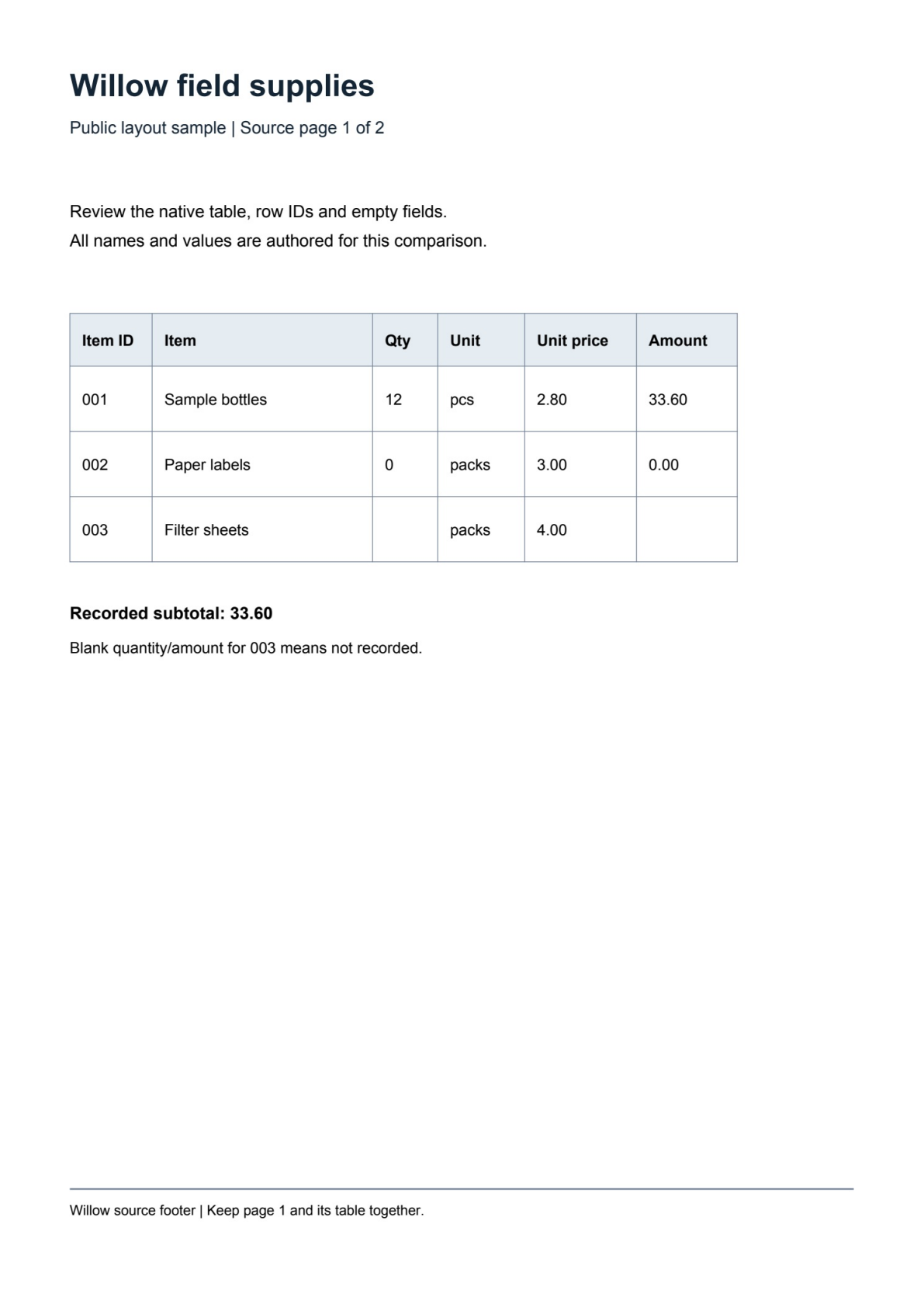
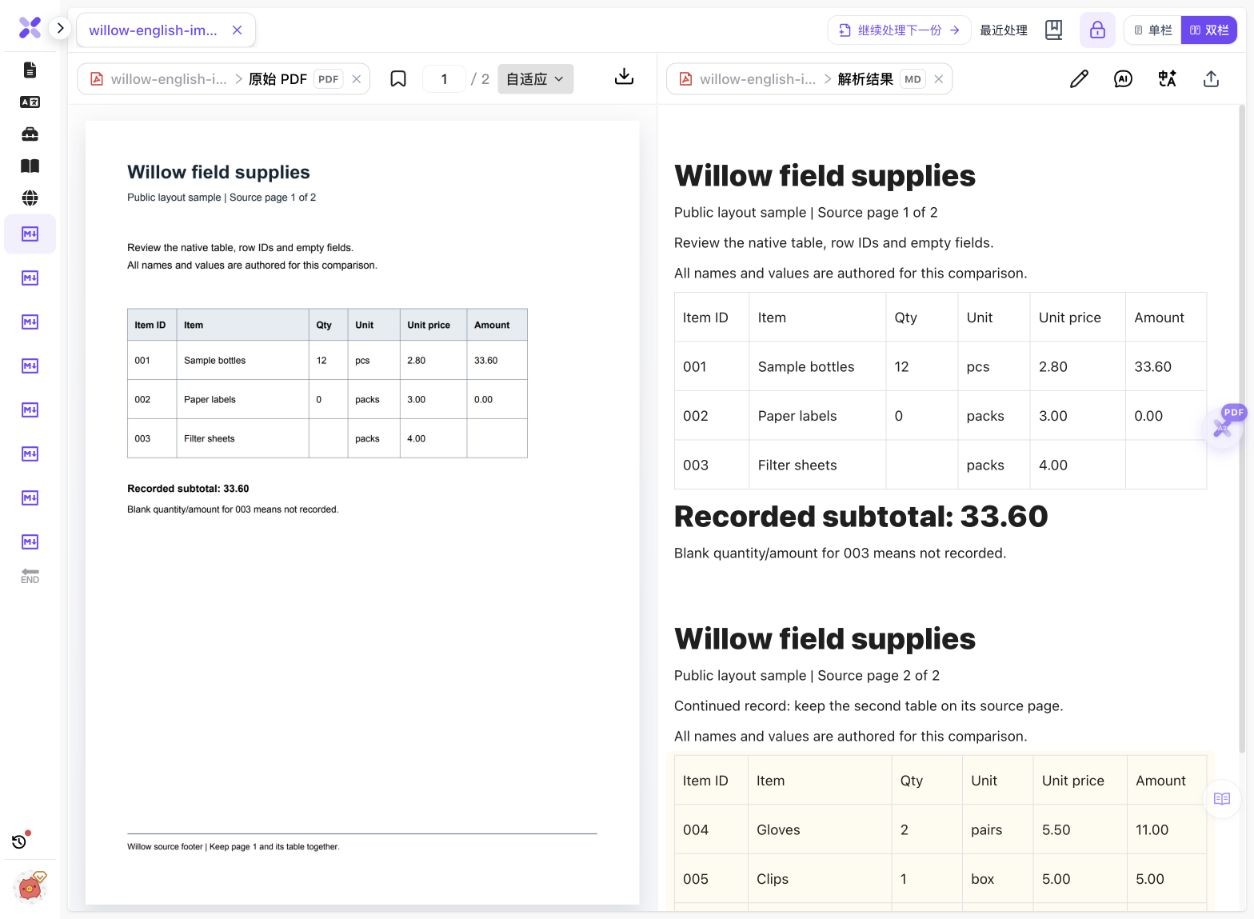
On 14 October 2026, we opened the completed OCR result of the authored two-page English supplies record and clicked Table Excel. The native download below is unchanged. A separate local workbook and CSV combine the six checked records with source-page fields.
 Enlarge image ↗
 Enlarge image ↗
| ID (text) | Quantity | Amount | Source page |
|---|---|---|---|
| 001 | 12 | 33.60 | 1 |
| 002 | 0 | 0.00 | 1 |
| 003 | Blank | Blank | 1 |
| 004 | 2 | 11.00 | 2 |
| 005 | 1 | 5.00 | 2 |
| 006 | −1 | −5.00 | 2 |
- The native workbook contains 第1页 表1 and 第2页 表1, meaning page 1/table 1 and page 2/table 1. Each sheet is 4 rows × 6 columns, including the repeated header. No automatic cross-page join occurred.
- IDs 001–006 are text cells. Recorded quantity, unit price and amount values are numeric with General format; a value such as 2.8 is not a promise of fixed two-decimal display.
- Item 003 has blank quantity and amount; 002 records zero; 006 records a return of −1 and −5.00. Those meanings remain separate in both reviewed files.
- The five known amounts total 44.60, with page subtotals 33.60 and 11.00. Source subtotal/total sentences are outside the tables and are not extra detail rows. The source does not specify currency.
- The local reviewed table has 6 records and 8 columns, adding Source page and Source worksheet. Its UTF-8 BOM CSV reads back as 6 records / 8 fields, with 001, blank 003 and −5.00 intact.
The input is a digital rasterization of an authored example, not a physical scan or customer record. Native XLSX bytes are unchanged. The combined workbook, two-decimal CSV, provenance fields and comparison ZIP are created locally after review; they do not demonstrate direct CSV export, automatic joining or missing-value completion. Native Excel/WPS opening and CSV import were not tested.
What to check
Parse the PDF and review the recognized tables, then choose Export document → Table Excel (导出文档 → 表格 Excel). This shortcut downloads an XLSX immediately. In the actual two-page example, each recognized table becomes its own worksheet. Check headers, IDs and data types before joining rows; the reviewed merged workbook and CSV here were prepared separately, not automatically by the product.
- Native download
- Two worksheets, each with one header and three data rows.
- Identifiers
- 001–006 remain text; recorded quantities and amounts are numeric.
- Data distinctions
- Zero, a blank amount and a negative return are retained separately.
- Reviewed follow-up
- Six rows with source-page fields; the combined XLSX and CSV are local examples.
Review values and source fields before importing CSV
Known-amount check for this sample
Page 1: 33.60 + 0.00 = 33.60
Page 2: 11.00 + 5.00 - 5.00 = 11.00
Known amounts: 33.60 + 11.00 = 44.60
Missing amount: item 003 (still blank)
44.60 is the sum of five recorded amounts, not a completed six-row total. The reviewed workbook stores check values as static notes, not recalculating formulas.
Two actual rows from the local CSV
003,Filter sheets,,packs,4.00,,1,第1页 表1
006,Returned gloves,-1,pair,5.00,-5.00,2,第2页 表1
The blank fields remain empty. Worksheet provenance retains the native Chinese names. Import Item ID as text; CSV quoting and encoding do not set a spreadsheet’s column types.
Choose the output that matches the next task
| Need | Use | Check |
|---|---|---|
| Review table cells from all pages | Native Table Excel download | Worksheet count, headers, values and types |
| Join one continued table | A separate reviewed working copy | Same scope/units, boundary records and duplicate headers |
| Import a single table into another system | CSV after reviewing XLSX | Encoding, fields, leading zeros and blanks |
| Rewrite document paragraphs | Word export | Tables versus textboxes and changed pagination |
| Search the original scan | PDF text-layer export | Search, selection and copy order |
How many Excel sheets should a PDF produce?
Count recognized tables, not only PDF pages. This example has one table on each of two pages, so the native output has two worksheets. A page with two tables or no tables may differ. Read each sheet name and inspect its contents instead of assuming one page always equals one worksheet.
Confirm a continued table before combining it
The English sample continues the same item record across pages with matching fields and units. In the local copy, only data rows were appended and source page/sheet were added. Matching column counts alone are insufficient for different periods, currencies or entities. A record split across a page break needs its own review; this sample has complete rows.
Leading zeros belong to the identifier
The native IDs 001–006 are strings. Converting them to numbers and later displaying three digits is not the same as retaining the original identifier. The CSV still contains 001, but a receiving spreadsheet may infer 1 unless you import the ID column as text.
Blank, zero and negative are three different states
The unrecorded amount for 003 must not be silently replaced with zero. The zero for 002 is a real record, and −5.00 for 006 is a return. Deleting the zero row leaves the same sum while losing a record, so total agreement alone cannot establish completeness.
Check numerical value and display format separately
The native workbook stores numeric 2.8 rather than the source’s displayed 2.80, with General number format. The local reviewed files deliberately show two decimals for prices and amounts. That formatting decision should not be described as identical preservation of the source text.
PDF to CSV requires a reviewed follow-up step
The actual product download here is XLSX. CSV is generated afterwards from the checked single table and does not retain multiple sheets, styles or cell types. Keep the native workbook, confirm the receiver’s requirements and verify the parsed records after import.
Keep totals outside the detail rows
The body-text subtotals and 44.60 total are checks, not additional items to append. Adding 44.60 again would double the known amount. Confirm IDs, record count, missing-value count and page subtotals before comparing the total.
Detailed tool instructions
English Help explains native worksheets, reviewed copies, row/amount checks and CSV preparation.
Official references
Troubleshooting
- There are two sheets instead of one
- That is the native result for these two recognized tables. Review whether they belong together before combining a copy.
- 001 becomes 1 after opening CSV
- Import the identifier column explicitly as text and compare with the unchanged XLSX. A later display format cannot establish the original value.
- The total matches but a record is missing
- Check zero-value rows, identifiers and record count. Deleting 002 leaves 44.60 unchanged in this example.
- An empty amount was filled with zero
- Restore the original blank and flag it for review. A missing value is not a verified zero.
- The export says no tables were found
- Inspect the recognized result: apparent table lines may have been interpreted as text or an image. Review clarity and structure before exporting again.
Frequently asked questions
Can a scanned PDF table be exported to Excel?
This image-only two-page sample was OCR-processed and its recognized tables exported to a real XLSX. Download the source and workbook to inspect the result; unclear or complex scans need separate checks.
Are tables across pages merged automatically?
Not in this observed download. It contains two sheets. The combined workbook provided here is a local reviewed copy with provenance columns.
Does the product directly export this CSV?
No. The native download is XLSX; the CSV is generated locally after reviewing and joining the two tables.
Can I use the 44.60 total as the complete amount?
It is the sum of five known amounts; item 003 remains missing. Do not interpret it as a verified total for all six records.
Does this test prove all formatting or spreadsheet imports?
No. It checks file structure, values and CSV read-back for a simple authored table, without native Excel/WPS editing, complex merged headers or split records.
Checked: 2026-10-14. Check the current tool for limits and conditions.