
On this page
Recognize, review and export an editable document
- Open PDF parsing and choose Start parsing file (开始解析文件). Select the scan, check its page range and current quota, then confirm Start parsing (开始解析).
- Compare the recognized result with the original page. Review row IDs, units, zeros, blank cells and negative signs before choosing an output.
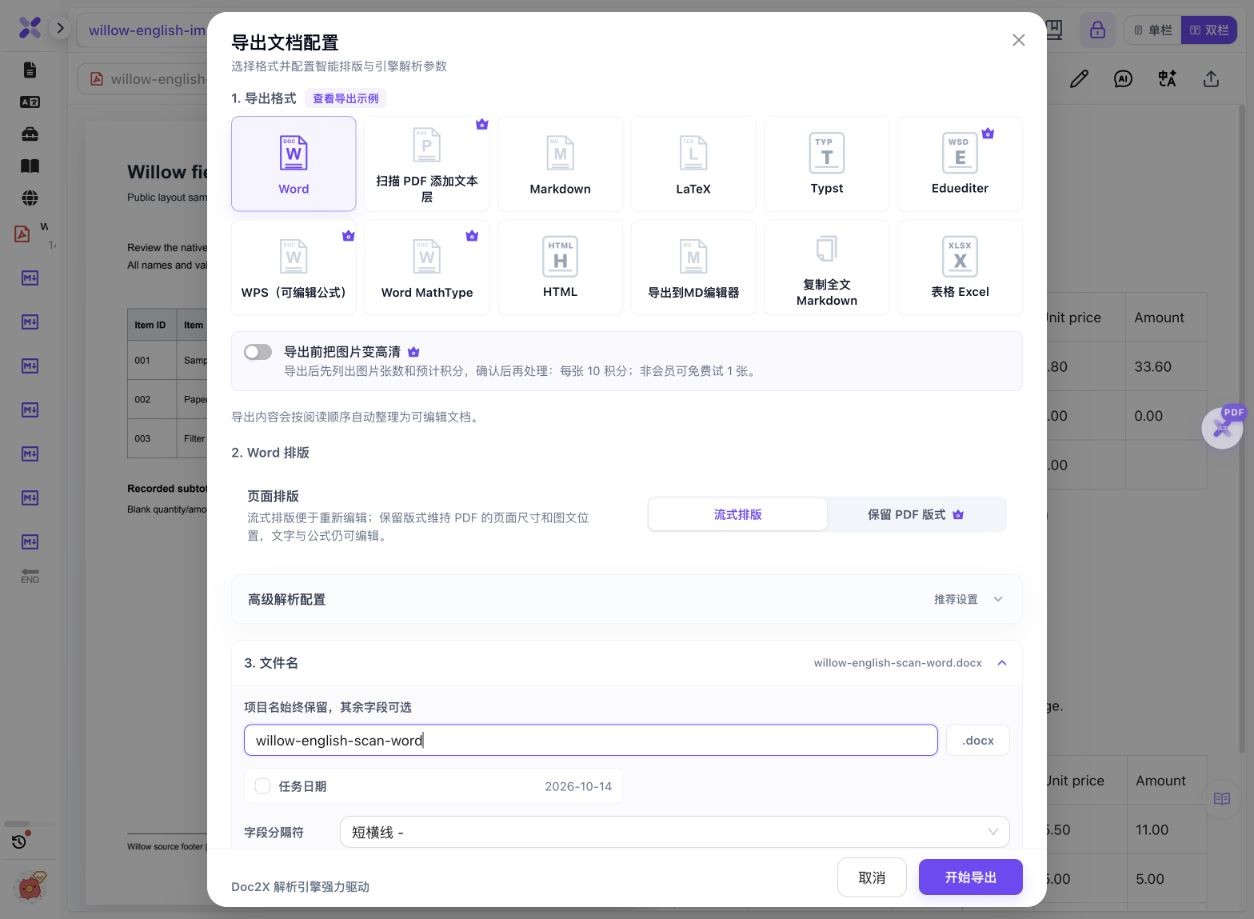
- Open Export document (导出文档), choose Word, and select Reflow (流式排版) under Word layout. Use preserved layout only when the source-page positions are your priority.
- Give the output a distinguishable name and click Start export (开始导出). Download the new DOCX rather than reusing an older file with similar naming.
- In your target editor, check whether the table has real rows and columns. Try the needed edit in a copy, then inspect content, pagination, footers and fonts.
- If you only need to search the original scan while retaining its appearance, use the separate searchable-PDF output described in the related guide.
The example checks native DOCX structure and a local LibreOffice preview. It does not claim a Microsoft Word/WPS interactive edit test or accurate recognition for every scan.
Two image-only pages, two real Word tables
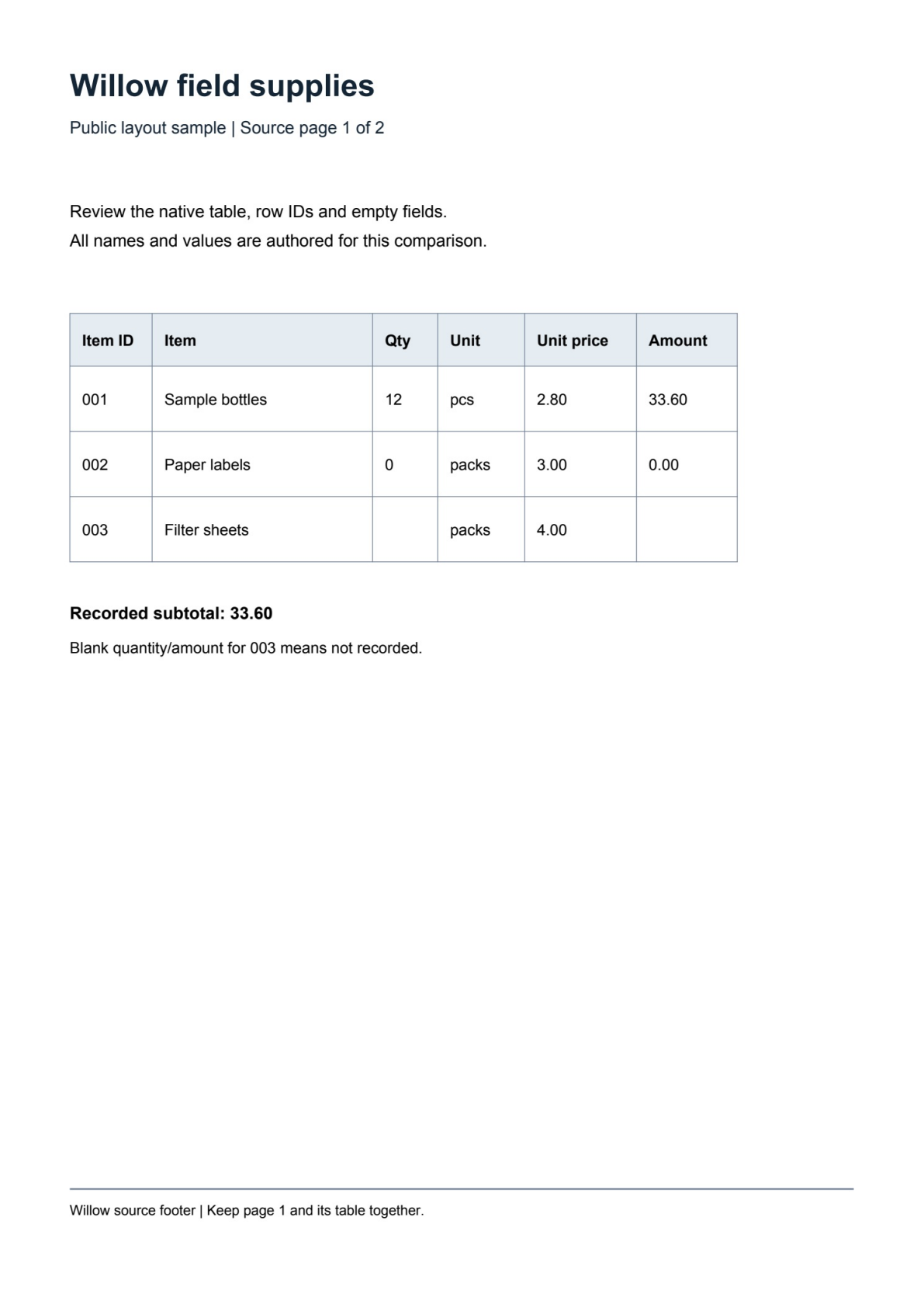
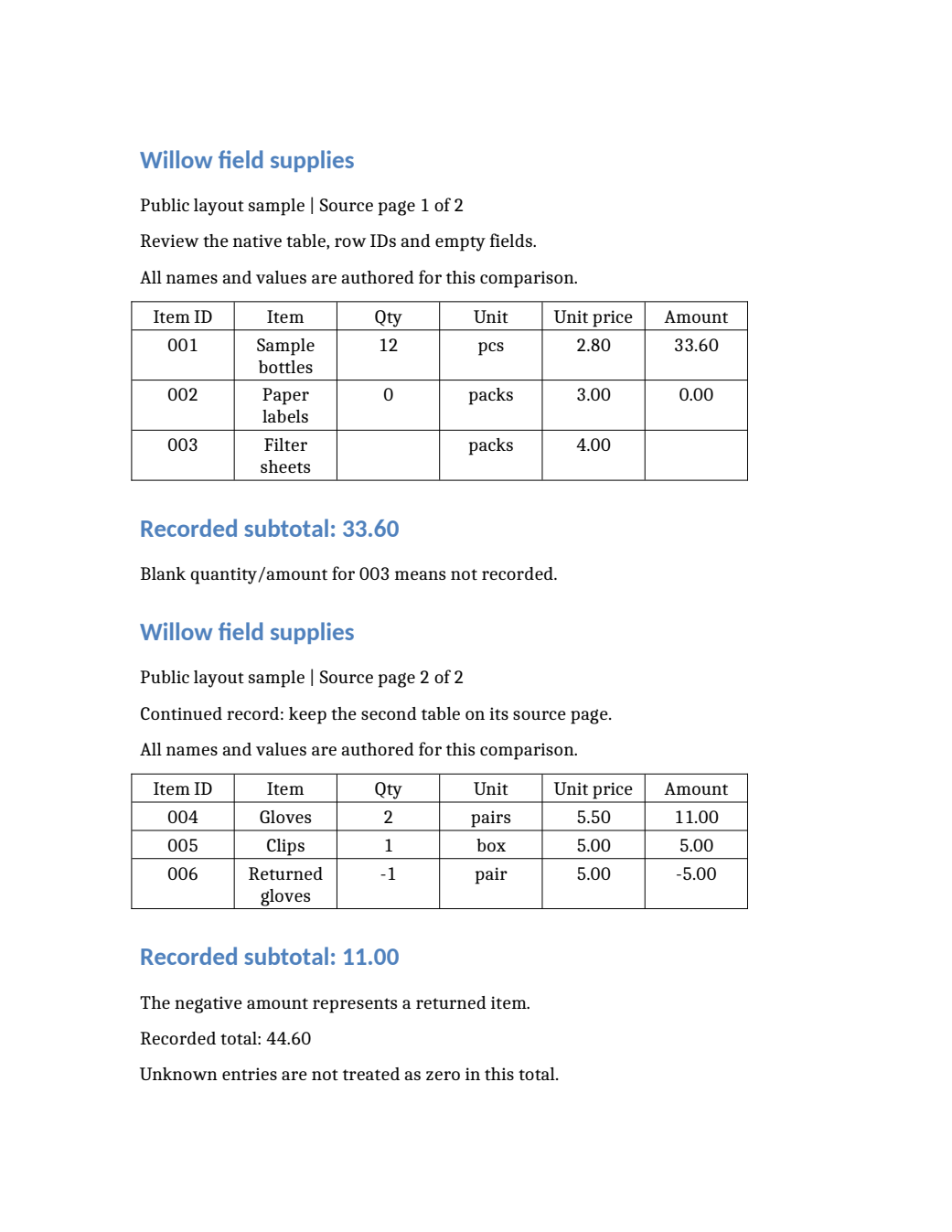
On 14 October 2026, the two-page authored English record was uploaded as a raster PDF and processed through OCR. The downloaded reflow DOCX below contains real table cells and text. Its local preview puts both source tables on one page.
 Enlarge image ↗
 Enlarge image ↗
| Check | Input PDF | Word output |
|---|---|---|
| Pages in the stated viewer | 2 A4 pages | 1 page in local LibreOffice preview |
| Native editable tables | None; page images | 2 tables, each 4 rows × 6 columns |
| Embedded page images | 1 JPEG per page | 0 embedded images |
| Item 003 quantity / amount | Visually blank | Blank native cells |
| Source footer sentences | Visible in both images | Absent from DOCX text |
- The input has no extractable text. The DOCX stores paragraphs and two native tables, so this result is not merely a page image pasted into Word.
- Both table headers and six row IDs are present. Item 003 keeps empty quantity and amount cells; item 002 retains 0 and 0.00; the return retains −1 and −5.00.
- The total 44.60 remains. It is a total of recorded amounts, not an inference that the blank item is zero.
- The source footer sentences are absent from this Word output. The local preview combines two source pages into one; source-page labels remain ordinary content.
The input was made by rasterizing an authored English record into two JPEG page images at 180 DPI. It has no text layer and is not a physical scan or phone photo. The OCR result was not manually edited. Native downloads remain unchanged; preview images and the comparison ZIP are local artifacts. The local preview uses LibreOfficeDev 26.8 with existing fonts. It is not a Word/WPS editing screenshot, and the input has no formulas, handwriting or complex merged cells.
What to check
A scanned PDF needs OCR before its visible text becomes editable content. Upload the PDF, review the recognized words and table values, then export Word with Reflow when you want paragraph and table editing. In this sample, two image-only pages became a DOCX with two native tables and no embedded page images. Page layout and footers still changed, so inspect the actual file.
- Before OCR
- Two A4 image pages; zero extracted text characters.
- Actual Word
- Two native 4×6 tables, no textboxes and no embedded images.
- Data checks
- IDs 001–006, blank cells, zero and −5.00 remain.
- Layout check
- Local Word preview is one page; the source footer sentences are absent.
Choose editing or original-page reading
| Next task | Output to consider | Check afterwards |
|---|---|---|
| Rewrite text or edit table rows | Reflow Word | Native objects, omitted text and new page breaks |
| Keep source-page positions in Word | Supported preserved Word layout | Textboxes versus tables, fonts and overflow |
| Search/copy while keeping the scan | Searchable PDF | Text layer, search hits and copy order |
| Calculate or filter tabular data | Table Excel export | Values, blanks, signs and source provenance |
How to tell whether the PDF needs OCR
Try selecting and searching for a known word. A page can look sharp while containing only an image. This sample was independently checked to have zero extracted characters before processing; adding the PDF to Word as a picture would not make its words or table cells editable.
A native table is different from selectable text
The actual DOCX has two 4×6 tables. A preserved-layout result may instead contain positioned textboxes, and a screenshot contains neither. Match the object type to the edit you need, then test in your own Word/WPS environment.
Keep blanks, zeros and negative values distinct
The blank quantity and amount for item 003 mean unknown data. Item 002 explicitly records zero; item 006 is a return. These differences survived the checked reflow output, but each scan still needs value-level review.
Reflow can change page count and omit footers
The local preview has one page while the source has two. Both source tables are present, but the source footer sentences are missing. A smaller page count does not automatically mean the second page was lost, and correct table values do not prove all surrounding text was retained.
Scan quality still matters
The authored input is a clear digital rasterization. Blur, glare, skew, clipping and handwriting were not tested. Improve capture quality or review representative pages before processing a long document; do not treat this small example as a universal accuracy score.
Detailed tool instructions
English Help explains the current document parsing workflow and review before export.
Troubleshooting
- The DOCX still contains a page-sized image
- Confirm that OCR was performed and that you opened the correct export. Inspect text and native tables rather than relying on a thumbnail.
- A row value looks plausible but is wrong
- Compare it with the scan, including signs, decimal places, units and empty fields. Correct the recognized result and verify a new download.
- The Word pages no longer match the scan
- Check whether Reflow was selected. Use the documented layout comparison before deciding whether to switch modes.
- Text appears in the source footer but not Word
- Compare footers separately. This sample retains the main tables but omits its source footer sentences.
Frequently asked questions
Can an image-only PDF become editable Word?
This two-page example produced paragraph text and two native Word tables after OCR. Download and inspect the actual files; results depend on the input and required structure.
Is this a free unlimited scanned-PDF converter?
This guide makes no such promise. Check current sign-in, parsing quota and export conditions in the workspace.
Will Word preserve the scan exactly?
The tested reflow output changes pagination and omits footer sentences. Preserved layout is a separate option with its own object and editing tradeoffs.
Was this sample taken with a real scanner?
No. It is a self-authored English document rasterized locally into page images, with no text layer. It does not test a physical scanner or phone camera.
Checked: 2026-10-14. Check the current tool for limits and conditions.