
On this page
Add text, then test search and copy in the saved PDF
- Keep the original PDF. Check a known word with your reader’s search and selection tools; image-only pages may contain no usable text layer.
- Upload the PDF for parsing, confirm the range and quota, and compare OCR text with the original images. Save any necessary corrections before exporting.
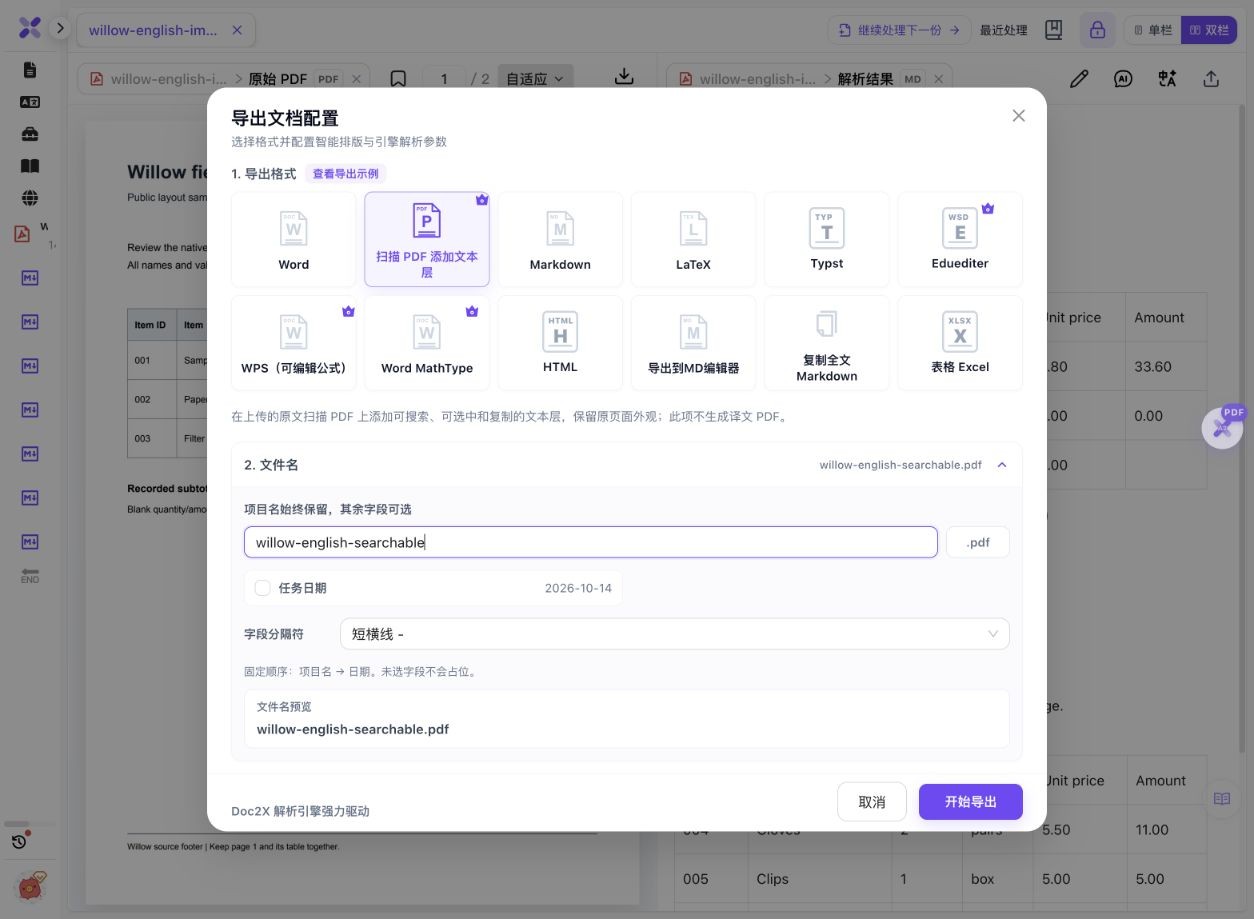
- Choose Export document (导出文档) → Add Text Layer to Scanned PDF (扫描 PDF 添加文本层). Check the filename and access prompt, then start export.
- Open the downloaded PDF. Search for both a word and a number, including an item on a later page; verify that the highlighted result corresponds to visible content.
- Select a representative line, copy it and paste into a plain text field. Compare characters, punctuation and order with the page; repeat for more complex areas as needed.
- If you need to change paragraphs or table rows, use Word or Excel export. Searchable PDF is a reading/search output, not a substitute for native editable objects.
The text-layer export was marked as a member feature in the tested dialog. Check task eligibility and current access. This output adds original-language text, not a translation.
The page stays the same; search and copy become available
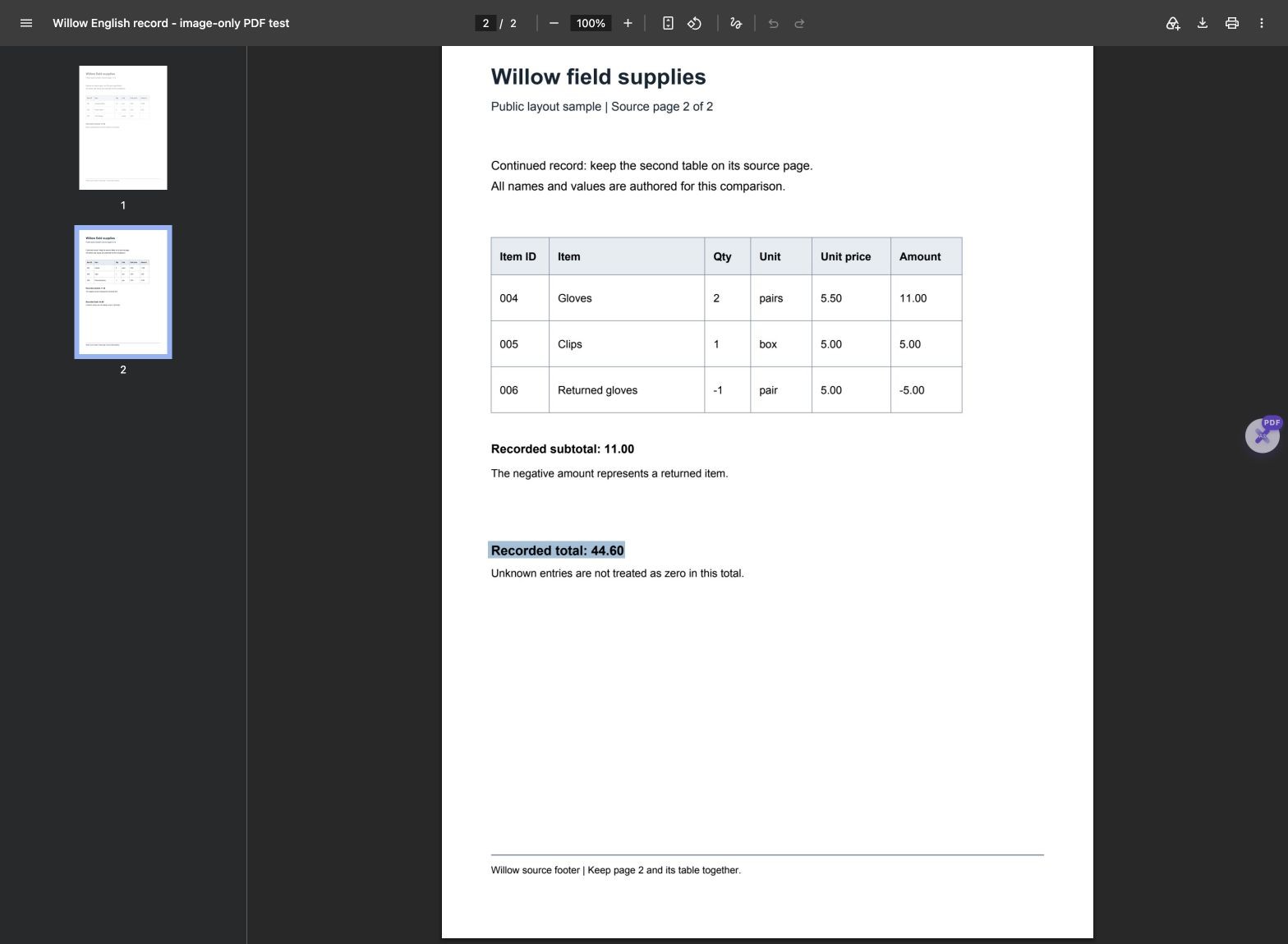
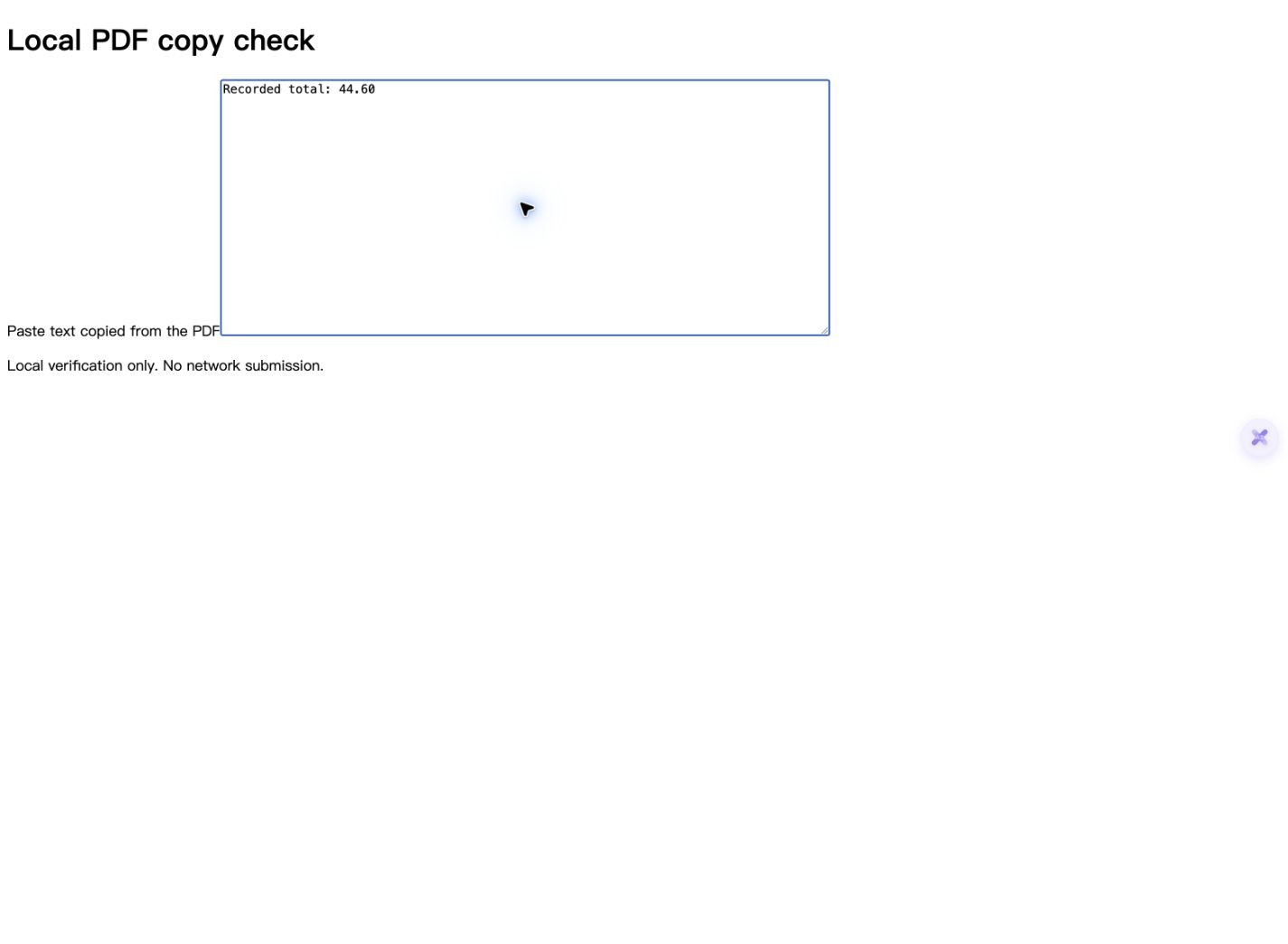
The same two-page raster PDF used for the Word example was exported with an original-language text layer. The saved result was independently compared with the input and opened in Chrome. A real selection was copied through the system clipboard and pasted into a local textarea.
 Enlarge image ↗
 Enlarge image ↗
| Check | Before | After |
|---|---|---|
| Page count and dimensions | 2 A4 pages | Same 2 page boxes |
| PDFium extracted characters | 0 | 454 + 534 across the two pages |
| File search: Willow | 0 | 4 |
| File search: 44.60 | 0 | 1 |
| Chrome native Find: 44.60 | Not tested in reader on input | 1/1; navigates to page 2 |
| Actual copy/paste | No input text layer | Recorded total: 44.60 |
| File size | 470,001 bytes | 482,460 bytes |
- Each original JPEG stream is byte-identical in the output. Both pages render pixel-identically at 2× with PDFium, at 1191×1684 pixels per page.
- Independent searches change from zero hits to Willow: 4, 33.60: 2, 44.60: 1 and Returned gloves: 1. Counts describe this fixed sample, not OCR accuracy.
- Chrome’s native Find displays 1/1 for 44.60. Selecting its line, using native copy and pasting into a local textarea yields exactly “Recorded total: 44.60”.
- The output text includes both source footers, while the separately exported reflow Word does not. Whole-table copy order and cell-level selections were not verified by the single-line paste check.
The input was made by rasterizing an authored English record into two JPEG page images at 180 DPI. It has no text layer and is not a physical scan or phone photo. The OCR result was not manually edited. Native downloads remain unchanged; preview images and the comparison ZIP are local artifacts. Native PDF and DOCX are different outputs from the same result. The paste screenshot is an actual local check, not text injected as a simulated result. The two independent extractors return different whitespace/character counts. This sample does not validate handwriting, rotated pages, signatures, permissions or every reader.
What to check
Recognize the scanned PDF, review its text, then choose Add Text Layer to Scanned PDF (扫描 PDF 添加文本层) in Export document. The original page image remains visible while the new text supports search and selection. In this sample, both page images and rendered pixels match the input, and Chrome finds and copies a checked amount line. This does not turn the PDF into a native editable table.
- Before
- 2 image-only pages, no extracted text.
- After
- 2 pages with a searchable/selectable text layer.
- Appearance
- Original JPEG bytes and 2× rendered pixels match for both sample pages.
- Actual reader check
- Chrome finds 44.60 once and copies “Recorded total: 44.60”.
What a searchable PDF does and does not provide
| Your need | Useful output | Remaining check |
|---|---|---|
| Search the original page | PDF with OCR text layer | Keywords, numbers and highlight locations |
| Copy a passage | Selectable PDF text | Pasted characters and reading order |
| Edit table rows and columns | Word/Excel with native objects | Actual object type and data accuracy |
| Translate the page | A translation task and its export | Original-language text layer is not translated output |
| Reduce file size | A separate compression workflow | Adding text can increase bytes |
What is a searchable or dual-layer PDF?
A visible scan image can be retained while invisible text is placed over it for search and selection. That is the two-layer idea here; it is unrelated to bilingual side-by-side pages. The sample looks the same but gains text that readers can search.
Verify the saved result, not just the OCR screen
OCR text displayed in the web workspace does not prove that the downloaded PDF contains a usable layer. Open the saved output and test known content. Here the total on page 2 was found and a selected line was actually copied and pasted.
Image preservation is a separate check
For this authored input, page boxes, original JPEG bytes and 2× renderings match. These checks support the stated sample result, not a blanket guarantee for all files, image formats or reading software. Keep the original for comparison.
Text extraction is not spreadsheet structure
The sample’s table values can be found in the text layer. That does not provide editable cells or prove that dragging across a complex table will paste in the desired order. Use a native table output when you need structured data, and inspect its blanks, signs and units.
Adding a layer can increase file size
The file grows by 12,459 bytes in this example. The goal is retrieval, not compression. If you compress later, test that the text layer and needed image detail still survive.
A successful search does not prove all OCR is correct
The input is clear and simple. Review representative body text, tables, footers and page transitions. A single correct amount or copied line does not validate an entire document or another reader’s behavior.
Detailed tool instructions
English Help separates the original-language text-layer export from editing and translation outputs.
Troubleshooting
- Words are visible but search finds nothing
- Confirm you opened the searchable output, then check recognition and whether a text layer exists. A scan image alone is not searchable text.
- Search finds a number but selection is poorly aligned
- Check the word/line positions and copy order. A hit does not prove cell-level alignment.
- The output looks unchanged
- That can be expected: the scan image is retained and the added layer is invisible. Test search and copy rather than comparing thumbnails alone.
- I need to edit the table
- Choose Word/Excel and verify native objects. The text layer supports reading and retrieval, not row/column editing.
Frequently asked questions
Can I make a scanned PDF searchable while keeping its appearance?
This sample retains both original JPEG streams and pixel-identical 2× renderings while adding searchable text. Check your own file and reader before relying on the result.
Was copying actually tested?
Yes. One selected line was copied from Chrome’s PDF reader with the system clipboard and pasted into a local textarea, exactly as Recorded total: 44.60. That does not verify every paragraph or table.
Is searchable PDF the same as editable Word?
No. A searchable PDF retains page appearance with text for retrieval; Word provides editing structures that may reflow. Both actual outputs are downloadable here.
Does a dual-layer PDF contain two languages?
Not in this usage. The two layers are page image and OCR text. Translation uses a separate workflow.
Will OCR make the file smaller?
Not necessarily. This output is 12,459 bytes larger. Compression is a separate operation and should be checked independently.
Checked: 2026-10-14. Check the current tool for limits and conditions.