
On this page
Choose the Word layout after parsing
- Open PDF parsing, sign in if required and choose Start parsing file (开始解析文件). Select the PDF, check the page range and confirm Start parsing (开始解析). This sample used both source pages.
- Review the parsed text and tables against the PDF. Check row IDs, empty fields, negative values and page boundaries before exporting.
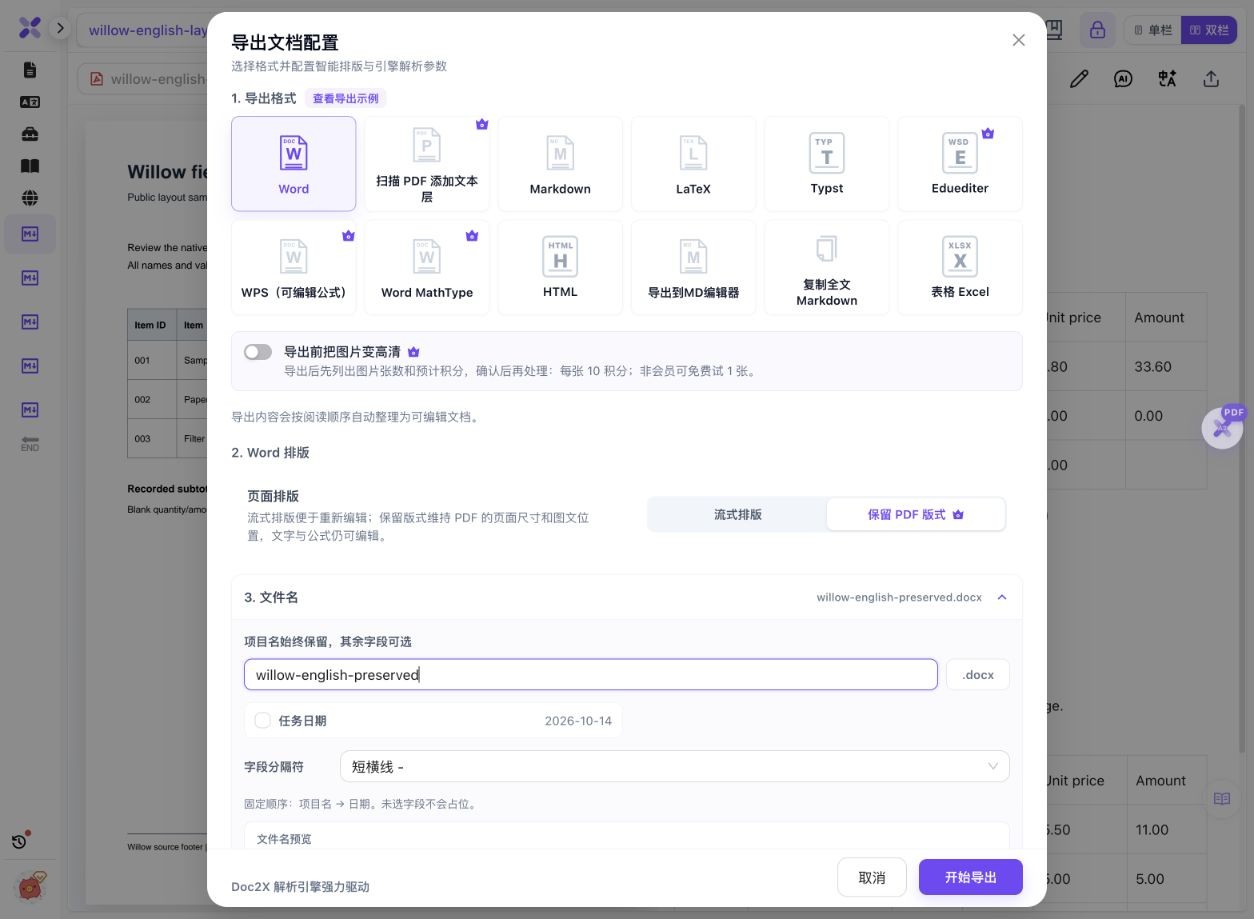
- Click Export document (导出文档), select Word and find Word layout / Page layout (Word 排版 / 页面排版).
- Choose Reflow (流式排版) for content editing or Preserve PDF Layout (保留 PDF 版式) for page positioning. Confirm the choice each time because the app can remember the last submitted layout.
- Use distinct filenames and click Start export (开始导出). Download each generated DOCX; changing an option does not update a file already saved on your computer.
- Open the result in your intended Word or WPS version. Check tables, textboxes, source-page content, footers and fonts; make a small edit in a copy before relying on the file.
Preserve PDF Layout was marked as a member feature in the tested interface. Check the current task, access and quota before processing; this guide does not promise free unlimited conversion.
One English PDF, two actual Word structures
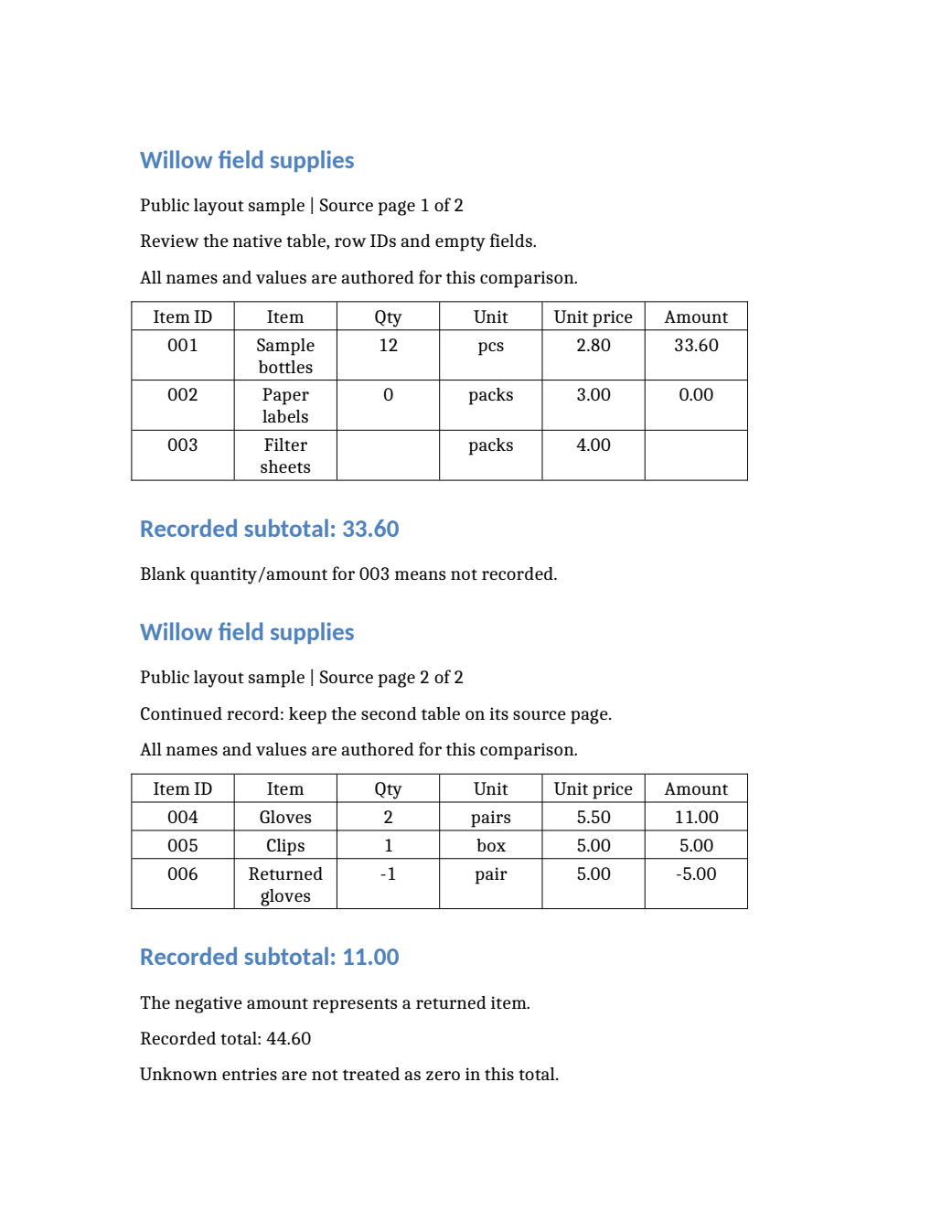
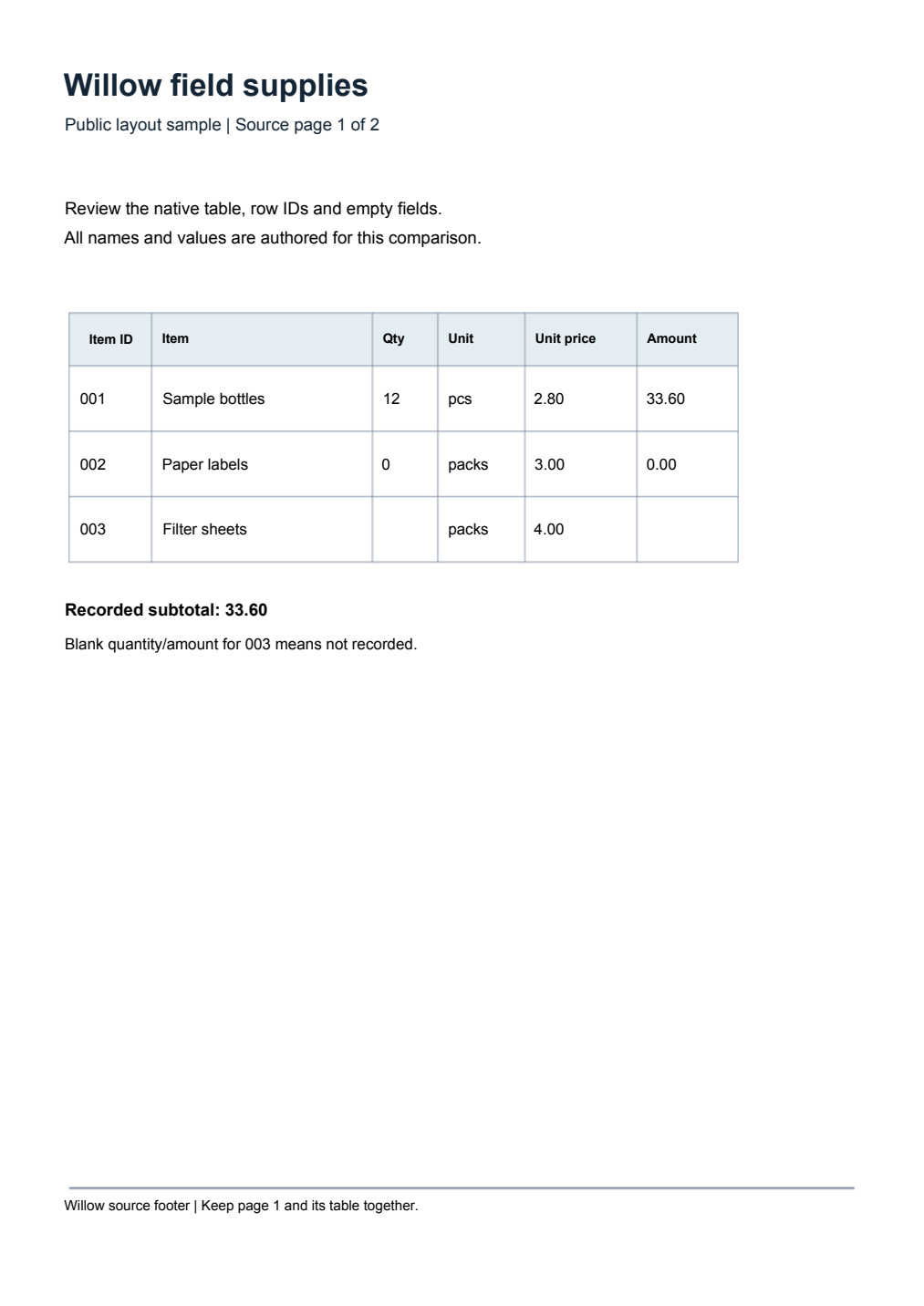
On 14 October 2026, we uploaded a self-authored two-page supplies record, parsed its two pages once and downloaded Word in both layout modes. The unchanged DOCX downloads below contain the same six item IDs. These page images are local LibreOffice previews of those files.
 Enlarge image ↗
 Enlarge image ↗
| Check | Reflow Word | Preserve PDF Layout |
|---|---|---|
| File format | DOCX | DOCX |
| Native table objects | 2; each 4 rows × 6 columns | 0 |
| Positioned textboxes | 0 | 62 |
| Section page size | Letter | A4 |
| Local preview page count | 1 | 2 |
| Second source table | Below the first table on page 1 | On page 2 |
| Source footer sentence | Absent | Retained |
- Both downloads retain item IDs 001–006, zero values, the negative amount −5.00 and recorded total 44.60. In the native reflow table, item 003 still has blank quantity and amount cells.
- The preserved file keeps the sample page positioning with 62 textboxes. Its table-like appearance does not supply native table row/column editing.
- The reflow preview puts both source tables on one page. The line “Source page 2 of 2” remains source content inside that page; it is not the new document page count.
- The preserved preview retains both source footer sentences and two pages. Fonts and target-app behavior can still change after editing, so this is not a universal identical-layout guarantee.
The PDF is an authored public example, not a customer document. DOCX bytes are unchanged. Preview PDFs/images were rendered locally with LibreOfficeDev 26.8 using existing fonts; they are not Microsoft Word/WPS screenshots or interactive-editing tests. A third preserved export restored the initially selected layout preference after the comparison. No translation, image enhancement or equation test was performed. The evidence ZIP is assembled locally.
What to check
Choose Word, then Preserve PDF Layout when page dimensions and object positions matter. Choose Reflow when you want to reorganize paragraphs or edit native table rows and columns. Both outputs are DOCX: the layout mode, rather than the extension, makes the difference. Our preserved sample uses textboxes, so its visible table is not a native Word table.
- Same input
- One self-authored, two-page English PDF, parsed once.
- Reflow output
- 2 native tables, no textboxes; the local preview is 1 page.
- Preserved output
- 62 positioned textboxes, no native tables; the local preview is 2 pages.
- Check in your app
- File structure and local previews were checked; Microsoft Word/WPS interactive editing was not tested.
Choose by the next edit you need to make
| Your next task | Start by checking | What this sample shows |
|---|---|---|
| Rewrite paragraphs or change document flow | Reflow Word | Text and tables can move to different pages. |
| Insert a table row or column | A native table in the reflow DOCX | Two native tables are present; verify editing in your app. |
| Keep source-page positions | Preserve PDF Layout | A4 pages and positioned textboxes retain the sample arrangement. |
| Calculate or filter table values | Table Excel export | A separate data workflow; still check blanks and negative values. |
| Deliver or print the final document | The actual target application | A local preview is useful evidence, but not the final editing environment. |
Which format preserves layout when exporting to Word?
The two files here are both DOCX. In the supported export dialog, choose Word and then Preserve PDF Layout for source-page positioning. Reflow chooses a different document structure. Renaming a file or switching its extension will not turn reflow content into a preserved layout.
Why a visible table may not behave like a Word table
The preserved sample contains 62 textboxes and no native table objects. You may be able to select individual text without selecting a whole table row. The reflow sample contains two 4×6 tables. If your task is to insert rows or columns, inspect the object structure and test the change in your actual editor.
Why two PDF pages became one Word page
Reflow reorganizes content into the Word page settings. Here both tables, their notes and the 44.60 total fit on one local preview page. Original “Source page 1/2” text is retained as content. Compare where the content went; do not infer missing pages from a changed page count alone.
Check footers separately from main content
The original source includes a footer sentence on each page. Those sentences are absent in the reflow DOCX and retained in the preserved DOCX. Whether a footer matters depends on your use, but it should be checked explicitly alongside the table and body text.
Keep unknown amounts distinct from zero
Item 002 records quantity 0 and amount 0.00. Item 003 has no recorded quantity or amount. Both are meaningful states; filling blank cells with zero changes the data. The total 44.60 sums the recorded amounts, including the −5.00 return, and does not infer the unknown entry.
Check fonts and layout in the final editor
The shown previews use one local LibreOffice environment. Word, WPS, available fonts and edits can change wrapping and pagination. Preserve a copy, try the actual edit you need and inspect nearby content before delivering the file. The sample has clear English text and simple tables, so it does not establish complex-formula or scanned-page accuracy.
Detailed tool instructions
English reference for Reflow, Preserve PDF Layout and task/access conditions; the product labels are included.
Troubleshooting
- I cannot find Preserve PDF Layout
- Confirm that the task has a supported result and a PDF source. Check the current export dialog and access prompt; an older result or image workflow may offer different options.
- The table looks right but I cannot add a column
- Determine whether it is a native table or positioned textboxes. Compare a reflow export; use Excel when the next step is calculation or filtering.
- The Word page count is smaller
- Check the full content distribution. In this sample, two source tables fit on one reflow page without losing their six row IDs. Source-page labels are not the output page count.
- The downloaded file still looks like the previous version
- Choose the mode, start export again and open the newly downloaded file. Use distinguishable filenames so an old copy is not mistaken for the new result.
Frequently asked questions
Which format preserves layout when exporting to Word?
Choose Word and the supported Preserve PDF Layout option. Both preserved and reflow downloads are DOCX; the layout mode controls the document structure. Check the file in your target application.
Does preserved layout keep tables editable by row and column?
Not necessarily. This sample has62 textboxes and no native table objects. The reflow sample has two native tables. Check the actual objects and editing support.
Does reflow always reduce the page count?
No. This two-page English sample renders as one page in the documented local preview, but other content, fonts and settings can paginate differently.
Is this a Microsoft Word or WPS editing test?
No. Native DOCX structure and local LibreOffice previews were checked. Download the files and test a small change in the application you use.
Can I try the sample without uploading my own document?
Yes. The source PDF, two actual DOCX files and local previews are public downloads. Processing your own document uses the current workspace sign-in, quota and export conditions.
Checked: 2026-10-14. Check the current tool for limits and conditions.