
On this page
How to combine PDFs in the English tool
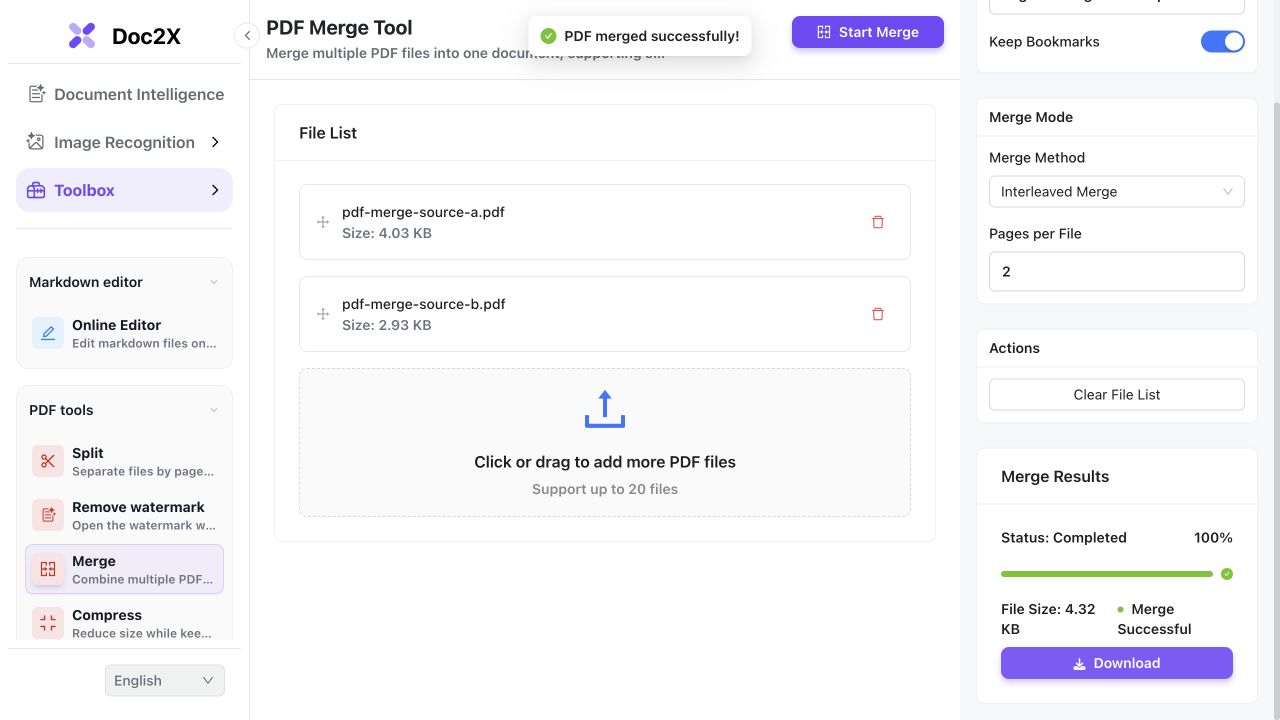
- Click Select Files and choose the PDFs. Check the File List and arrange the files in the order you want to read them. Keep the originals separately.
- Choose Sequential Merge to append each whole document after the previous one. Leave Keep Bookmarks enabled to retain existing PDF bookmarks.
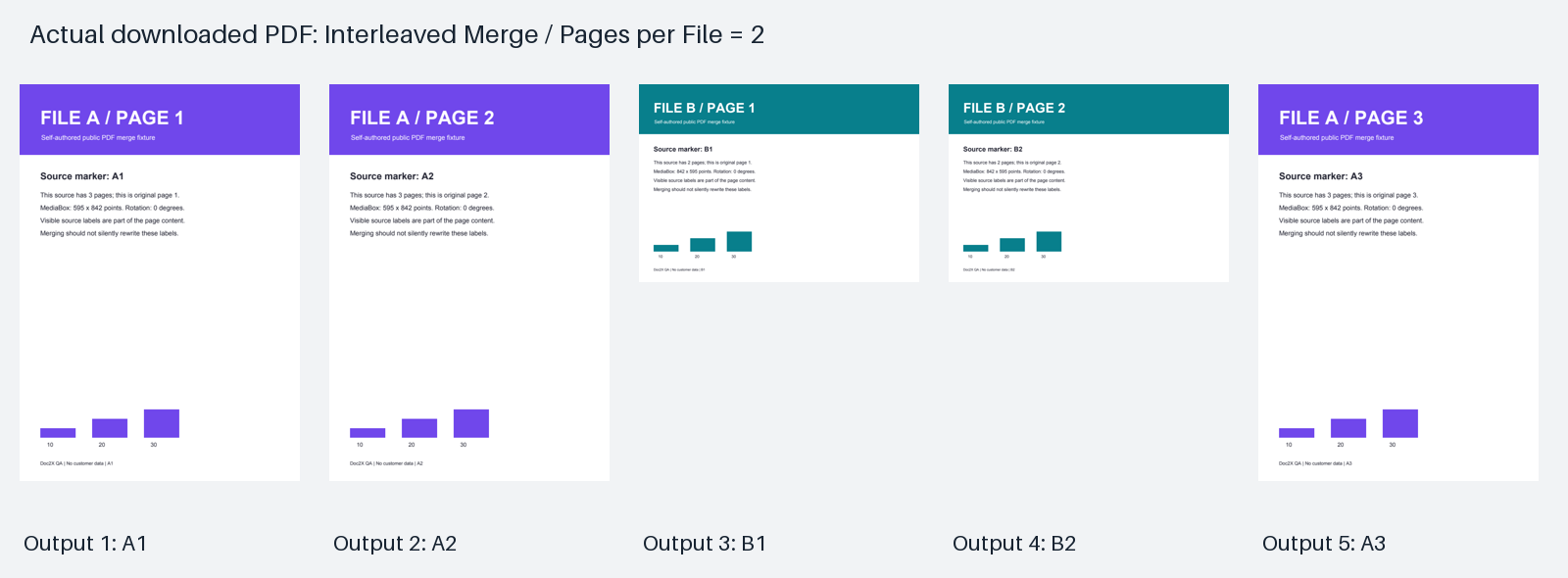
- For alternating groups, choose Interleaved Merge. In this example, Pages per File = 2 takes two pages from A, then two from B, then the remaining page from A.
- Set the Output File Name and click Start Merge. After changing the order or settings, click Start Merge again to generate a new result.
- When the status is Completed, click Download. Open that file and check the first page, file boundaries, last page and bookmark targets.
These two-file checks on 13 October 2026 required no sign-in or payment. The interface shows a limit of 20 files; this example does not test that maximum or large documents.
Two inputs, two real five-page outputs
We selected the same public A and B files in the English tool and processed them twice on 13 October 2026. The PDFs below are the actual sequential and two-page interleaved downloads. The preview shows the downloaded interleaved PDF rendered locally.
 Enlarge image ↗
 Enlarge image ↗
| Bookmark | Sequential PDF | Two-page interleaved PDF |
|---|---|---|
| A - Report | Page 1 | Page 1 |
| A - Methods (under Report) | Page 2 | Page 2 |
| A - Findings (under Report) | Page 3 | Page 5 |
| B - Appendix | Page 4 | Page 3 |
| B - Table (under Appendix) | Page 5 | Page 4 |
- Both output files contain five pages. Each page has the same extracted text and decoded PDF drawing instructions as its matching input page.
- The portrait and landscape page boxes and rotation values are unchanged. Merging does not make every page the same size.
- The downloaded bookmark destinations match the table. Titles and parent/child levels match the inputs; the tree stays grouped by source document even when pages are interleaved.
- The visible labels A1, A2, A3, B1 and B2 remain part of the page content. Moving a page does not rewrite its printed page number.
The screenshot records the actual tool. The page preview and comparison ZIP were created locally from unchanged downloads. This example does not establish support for encrypted, broken, digitally signed, form-based or large PDFs. It adds neither OCR nor translation.
What to check
Select your PDFs, put the files in reading order and choose Sequential Merge. Enable Keep Bookmarks if you want to retain their existing navigation. Click Start Merge, then Download. Open the saved PDF and check its page order and bookmark destinations. To alternate groups of pages instead, choose Interleaved Merge and set Pages per File before processing again.
- Source files
- File A has three portrait pages; file B has two landscape pages. Both are self-authored public samples.
- Sequential result
- A1 → A2 → A3 → B1 → B2: five pages in file order.
- Two-page interleave
- A1 → A2 → B1 → B2 → A3: five pages, with the remaining A page at the end.
- Existing bookmarks
- Five titles and their nesting levels are retained. Their destinations follow the new page positions.
Choose file order or alternating page groups
| Your task | Setting | Check after downloading |
|---|---|---|
| Report followed by appendix | Sequential Merge | The last report page is followed by the first appendix page. |
| Two pages from each file in turn | Interleaved Merge; Pages per File = 2 | A1, A2, B1, B2, A3 for these inputs. |
| Keep a clickable chapter tree | Keep Bookmarks enabled | Existing bookmark titles, hierarchy and target pages. |
| Renumber labels printed on pages | A separate editing task | The merger retains the visible source labels. |
| Make scanned text searchable | A separate OCR task | Combining pages alone does not recognize image-only text. |
Keep bookmarks when merging PDFs
A PDF bookmark is a navigation entry stored in the file. A printed contents page is different. Keep Bookmarks retains existing entries; it does not promise to turn every visible heading into a new bookmark. In the two-page interleaved sample, A - Findings moves from source page 3 to output page 5.
Merge PDFs with different page sizes
The sample combines portrait pages measuring 595 × 842 PDF points with landscape pages measuring 842 × 595 points. Both outputs retain those dimensions. Check the mixed orientations in your viewer and choose print settings deliberately if you need a uniform paper size.
Interleave PDFs with unequal page counts
File A has three pages and B has two. With two pages per file, the tool takes A1 and A2, B1 and B2, then A3. This is useful when the intended sequence uses groups. Check your own scan order before applying it to front/back scans; this sample does not test reverse-order back pages.
Check the new file after changing settings
An earlier download is a separate file. Changing the list or merge method does not update it. Run Start Merge again, download under a distinguishable name, and compare page count and boundaries before replacing the copy you intend to use.
Detailed tool instructions
Compare file order, two-page interleaving and bookmark destinations with the same source and output PDFs.
Troubleshooting
- Pages are in the wrong order
- Check both the File List and the order inside each source PDF. Confirm the merge method, process again and open the new download.
- A bookmark opens the wrong page
- Compare the original bookmark with its new destination and confirm Keep Bookmarks was enabled. Check the saved output, including nested entries.
- Page sizes are inconsistent
- Mixed sizes may come from the sources. Merging preserves the sample page boxes; it is not a page-size normalization step.
- A PDF cannot be selected or processed
- Confirm that the source opens normally. Password protection, corruption or resource limits may require a separate remedy; this sample does not test those conditions.
Frequently asked questions
Can I merge PDFs without signing in?
The two-file English-tool checks in this guide completed without sign-in or payment. Check the current interface for limits. OCR and translation are separate features with their own conditions.
Does merging preserve PDF bookmarks?
With Keep Bookmarks enabled, both downloaded sample PDFs retained all five titles and their nesting levels, with destinations updated to the new positions. Check your own files rather than assuming every PDF structure behaves identically.
Can I alternate two pages from each PDF?
Yes. Choose Interleaved Merge and set Pages per File to 2. The included unequal-length inputs produced A1, A2, B1, B2, A3.
Will merging change visible page numbers or recognize scans?
No. The sample retains the page labels already printed in the source. Combining pages does not add OCR, rewrite those numbers or translate the text.
Checked: 2026-10-13. Check the current tool for limits and conditions.