
On this page
Identify the boundaries, select the mode and inspect each part
- Select one PDF in the English split tool. Read the viewer’s total page count and locate the first and last page you need. Check covers and contents pages before using printed page numbers.
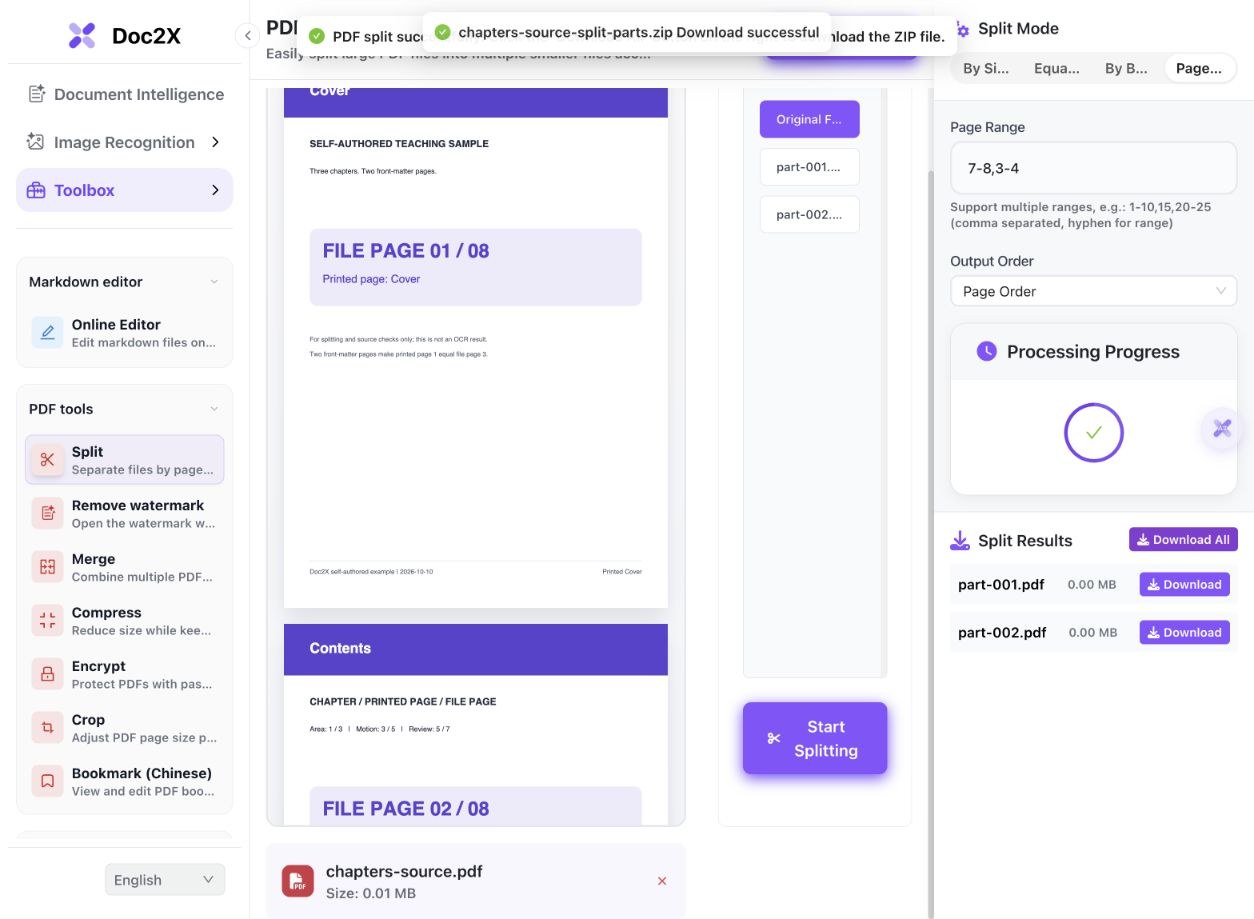
- For explicit pages, choose Page Range and enter an inclusive range such as 3-4. Multiple ranges such as 7-8,3-4 create separate output parts.
- Choose Input Order to keep the sequence you entered, or Page Order to arrange the range groups by their starting page. The file naming sequence reflects the output order.
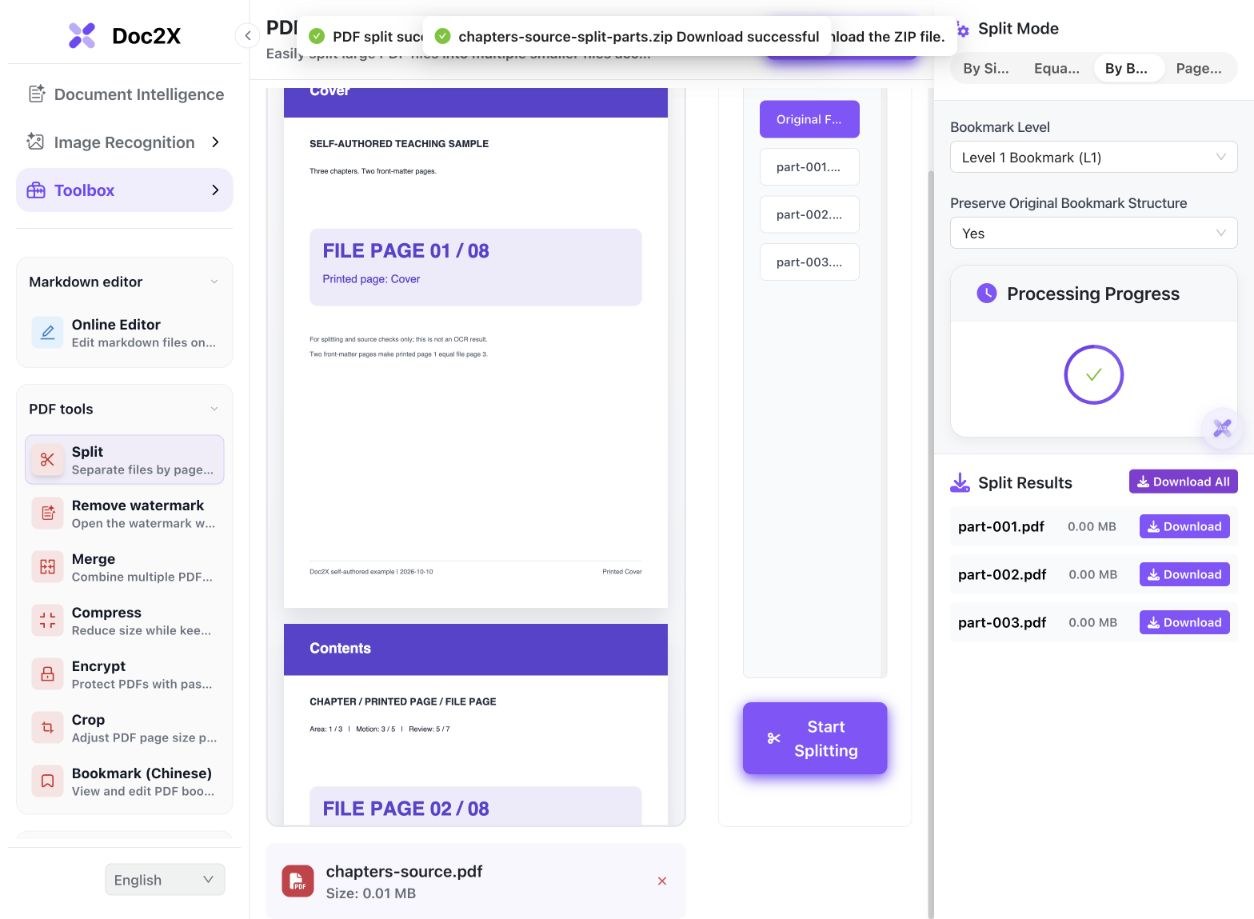
- For complete chapters, choose By Bookmark, select the bookmark level and whether to Preserve Original Bookmark Structure. Verify the source bookmark destinations first.
- Click Start Splitting after choosing the settings. Inspect the completed result list, then use Download for one part or Download All for the ZIP.
- Open the downloaded parts and compare their actual page markers, count and boundaries with the source. In bookmark mode, also check retained parent/child destinations and any front matter before the first bookmark.
These are page-splitting results. They do not demonstrate OCR, compression, an exact byte-size limit or automatic correction of incorrect source bookmarks.
One eight-page source, explicit ranges and three chapters
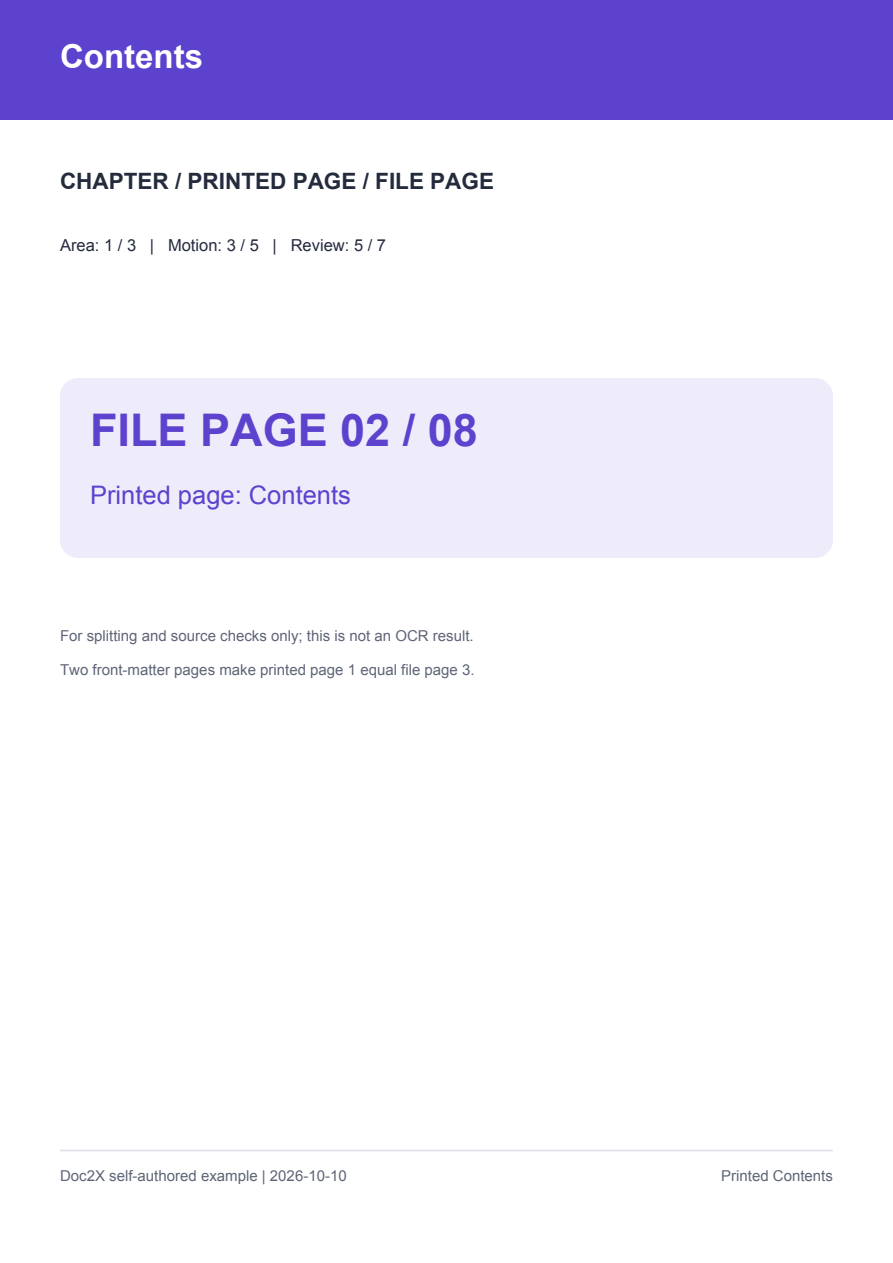
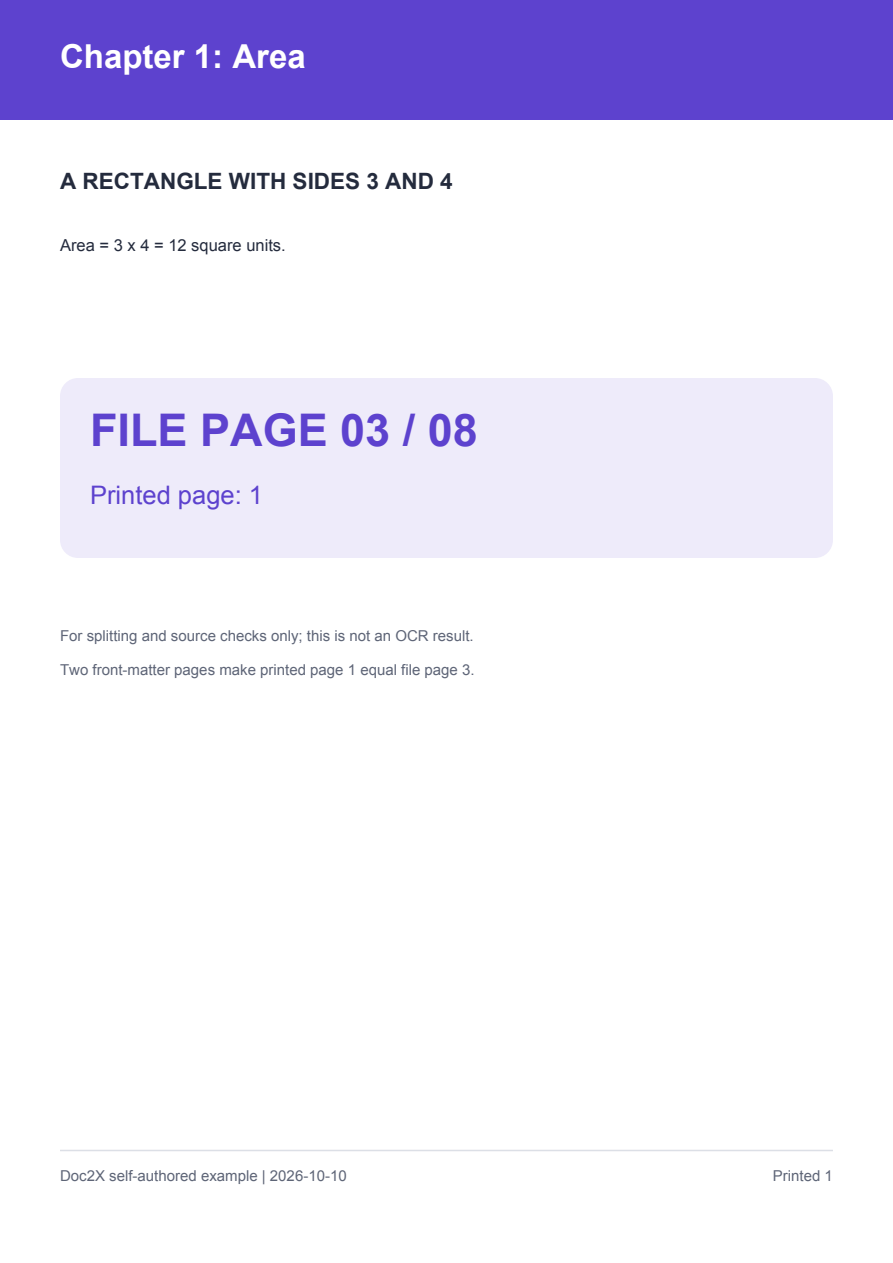
The public authored PDF has a cover, contents page and three chapters. The first printed page is the third file page. We used the English tool to extract pages 3–4, compare two output-order choices for 7–8,3–4 and split by level-one bookmarks while preserving their structure.
 Enlarge image ↗
 Enlarge image ↗
 Enlarge image ↗
 Enlarge image ↗
| Operation | Part order | Original file pages |
|---|---|---|
| Range 3–4 | One PDF | 3,4 |
| Ranges 7–8,3–4 · Input Order | Review then Area | 7,8 / 3,4 |
| Same ranges · Page Order | Area then Review | 3,4 / 7,8 |
| Level 1 bookmarks · preserve Yes | Area, Motion, Review | 3,4 / 5,6 / 7,8 |
- The single range output contains file pages 3 and 4, which are printed pages 1 and 2. The original file markers remain inside the extracted pages; they are not the output’s new page numbers.
- The two output-order modes produce the same selected page groups in different part order. They do not combine the disjoint ranges into one PDF. The downloads below keep these operations separate.
- Each level-one bookmark chapter has two pages. Its chapter bookmark points to local page 1 and its worked-example/answer child points to local page 2.
- The bookmark split starts at source page 3, so source pages 1 and 2 are absent from the chapter ZIP. Extract front matter separately if it is required in the delivery.
- The inspected outputs retain the selected pages’ text, decoded page content and page geometry. The explicit range outputs have no bookmarks; retained hierarchy is demonstrated by the bookmark-mode outputs.
- Small files display 0.00 MB after rounding in the result list. The downloaded PDFs contain real pages; inspect exact bytes and content before treating a rounded zero as an empty file.
The source is a digital teaching fixture with intentionally different printed/file page numbers, not a customer document. Native output files and ZIPs are unchanged; page images are local PDFium renders. Size-based splitting, encrypted files, forms, signatures, physical printing and OCR are outside this example. The comparison proof ZIP is assembled locally.
What to check
Use Page Range when you know the actual positions in the PDF, or By Bookmark when reliable chapter bookmarks define the boundaries. A printed page number may differ from the file position because of a cover or contents page. Multiple comma-separated ranges create separate output files; Output Order chooses whether those parts follow your entered ranges or their original starting pages. Download and inspect every part, including its first and last page.
- Sample structure
- Eight file pages: two front-matter pages and three two-page chapters.
- Printed versus file page
- Printed pages 1–2 are file pages 3–4 in this source.
- Multiple ranges
- 7–8,3–4 creates two parts; ordering changes which part is numbered first.
- Bookmark boundary
- Level-one splitting yields three chapters and omits unbookmarked front matter.
Choose a split method from the boundaries you need
| Need | Choose | Check afterward |
|---|---|---|
| Known first and last file positions | Page Range | Actual source positions and output page count |
| Several independent selections | Comma-separated ranges | Part order and the boundaries of every part |
| Complete chapters with reliable bookmarks | By Bookmark at the intended level | Chapter endings, front matter and local bookmark destinations |
| Similar page counts or target-size estimates | The separate equal/size options | Actual bytes; this range/chapter example does not test them |
| All pages retained but fewer bytes | PDF compression | Page completeness and image quality, not page removal |
Printed page 1 may not be file page 1
This source has two front-matter pages. Selecting 1-2 gives the cover and contents, not the Area chapter. Use the viewer’s actual positions and compare visible content. The extracted file still prints its original page labels, so those labels do not describe the new file’s total count.
Output order sorts parts, not chapter meaning
For 7-8,3-4, Input Order places Review first. Page Order places Area first because its starting page is earlier. The ranges remain separate two-page PDFs. Open the files rather than assuming part-001.pdf always means the same chapter across different settings.
Bookmark level defines the chapter boundaries
This source’s first-level bookmarks begin at pages 3, 5 and 7. Each chapter continues to the page before the next first-level bookmark, or the end of the source. Child bookmarks are not independent chapter boundaries at that level. Incorrect source destinations require correction before splitting.
Keep front matter deliberately
Pages before the first selected bookmark are not automatically added to the chapter ZIP in this example. Keep the original and extract 1-2 separately when a cover or contents page belongs in the final package. Chapter-only output and a complete partition of the source are different deliverables.
Preserved bookmarks need local destinations
A bookmark retained in a two-page chapter must point inside that new file. The observed chapter/child targets are local pages 1 and 2. Merely seeing a bookmark name does not prove its destination is correct; inspect the target page and hierarchy.
Splitting pages is not an exact file-size guarantee
Small text-only chapters can have very different byte sizes from image-heavy pages. The separate size-based guide shows why average-page estimates and one oversized page need actual byte checks. Choose compression when you need the full document with fewer bytes.
Detailed tool instructions
English Help explains page ranges, bookmark chapters and checking the actual output files.
Troubleshooting
- The wrong chapter was extracted
- Translate printed page labels into actual file positions, accounting for front matter.
- The chapter ZIP is missing the cover
- Check whether the first bookmark starts after the cover. Extract that front matter separately if needed.
- A result displays 0.00 MB
- Inspect the downloaded bytes and page count; rounding can hide the size of a small valid PDF.
- A bookmark label survives but opens the wrong page
- Check source destinations and local output page numbering, not just the label.
Frequently asked questions
How do I extract a chapter by page range?
Find its actual file positions, choose Page Range, enter an inclusive range and download the part. This example uses 3-4 for printed pages 1-2.
Do comma-separated ranges become one PDF?
In this workflow they produce separate parts. The two-range example downloads a ZIP containing two PDFs; use the merge tool separately if one combined file is required.
What does Page Order change?
It orders range groups by their starting page. For 7-8,3-4 the first output is pages 3-4; Input Order keeps 7-8 first.
Does bookmark splitting include pages before the first bookmark?
Not in this observed level-one split. Cover and contents pages 1-2 are omitted from the three chapter outputs.
Do all splitting modes retain bookmarks?
The shown bookmark mode with preservation enabled retains chapter and child bookmarks. The inspected explicit range files have none, so do not assume all modes have identical bookmark behavior.
Checked: 2026-10-14. Check the current tool for limits and conditions.